Friday, March 07, 2008
In the latest issue of the MSDN Flash we introduced 2 new features: a poll (you'll see the results in the next issue) and the ability to have a non-MS person write the 500 word article. Kenny kindly accepted the challenge and he wrote a great article on a security topic that may affect your code on Windows Vista and Windows Server 2008. Read it here (scroll down).
Labels: Vista, WindowsServer2008
Tuesday, January 29, 2008
On 3 recent events I spent 20' talking about the new native threading APIs in Windows Vista and Windows Server 2008. Here are resources as promised.
1. Thread Pool – re-architected native ThreadPool that amongst other things allows multiple pools per process.
2. One-Time Initialization – think singletons for the native world with an interesting option of asynchronous initialization.
3. Slim Reader/Writer Lock (SRW) – finally a reader writer lock out of the box for native devs.
4. Condition Variables – addresses scenarios such as the classic producer/consumer pattern in a more efficient way than previous techniques.
5. Thread Ordering Service (TOS) – an interesting service that I cannot find a compelling use case for. If you've got one, let me know!
6. Wait Chain Traversal (WCT) – aids in programmatically debugging deadlocks and hangs.
The links above point to the MSDN documentation where you can click further to read the API descriptions and click further to see code examples. In addition, the MSDN Magazine has 3 articles that describe all of the above (except for the TOS):
- June 2007 – Describes Condition vars, SRW, and One-Time Init. Don't let the title fool you, these are even more applicable with the release of Windows Server 2008.
- July 2007 – Describes usage of the WCT from unsafe C# code to create a utility.
- October 2007 – Describes the New Thread Pool APIs.
Lastly, I have created some slides for the above. Nothing fancy, just very boring bullets with lots of text and API signatures with nothing additional than what you can find in the links above. Their only use is if you need to talk about this topic and cannot be bothered to create your own from scratch, you can use mine as a starting point. See slides 8-22 inclusive in this deck.
1. Thread Pool – re-architected native ThreadPool that amongst other things allows multiple pools per process.
2. One-Time Initialization – think singletons for the native world with an interesting option of asynchronous initialization.
3. Slim Reader/Writer Lock (SRW) – finally a reader writer lock out of the box for native devs.
4. Condition Variables – addresses scenarios such as the classic producer/consumer pattern in a more efficient way than previous techniques.
5. Thread Ordering Service (TOS) – an interesting service that I cannot find a compelling use case for. If you've got one, let me know!
6. Wait Chain Traversal (WCT) – aids in programmatically debugging deadlocks and hangs.
The links above point to the MSDN documentation where you can click further to read the API descriptions and click further to see code examples. In addition, the MSDN Magazine has 3 articles that describe all of the above (except for the TOS):
- June 2007 – Describes Condition vars, SRW, and One-Time Init. Don't let the title fool you, these are even more applicable with the release of Windows Server 2008.
- July 2007 – Describes usage of the WCT from unsafe C# code to create a utility.
- October 2007 – Describes the New Thread Pool APIs.
Lastly, I have created some slides for the above. Nothing fancy, just very boring bullets with lots of text and API signatures with nothing additional than what you can find in the links above. Their only use is if you need to talk about this topic and cannot be bothered to create your own from scratch, you can use mine as a starting point. See slides 8-22 inclusive in this deck.
Labels: Vista, WindowsServer2008
Friday, December 21, 2007
In all my Vista talks I emphasize that with Windows Vista, applications must be signed. Not just for UAC, but for other areas as well (e.g. WER) and it is an actual logo certification requirement. If you haven't dabbled with code signing before I guess it implies that you don’t work for a large enterprise. In that case, head over here for an end-to-end "how to" on code signing.
Labels: Vista
Saturday, December 15, 2007
Seasoned Windows Forms developers will be familiar with the System.Drawing.SystemIcons class that has a bunch of properties returning standard system icons. For example, if you throw on a form a picturebox and a button with its event handler the following code shows how you can take advantage of SystemIcons:
Below is a screenshot of what the code above looks like side by side, before clicking the button and after. The screenshot at the bottom is after replacing the 3 icons with shield:

void button1_Click(System.Object sender, System.EventArgs e)With Service Pack 1 of .NET Framework v2.0 we get a new member of that class: SystemIcons.Shield. So, if you are on Windows Vista and you are working with User Account Control, you may find it a useful icon to use (for example on a menu).
{
// use Error
pictureBox1.Image = Bitmap.FromHicon(SystemIcons.Error.Handle);
// use Warning
this.Icon = SystemIcons.Warning;
// use Information
int h = button1.ClientSize.Height / 2;
Icon ico = new Icon(SystemIcons.Information, h, h);
Bitmap bitmap1 = Bitmap.FromHicon(ico.Handle);
button1.Image = bitmap1;
button1.ImageAlign = ContentAlignment.MiddleLeft;
}
Below is a screenshot of what the code above looks like side by side, before clicking the button and after. The screenshot at the bottom is after replacing the 3 icons with shield:
Labels: dot NET general, UAC, Vista
Tuesday, August 14, 2007
Two of my favourite new APIs of Windows Vista are: restart/recovery and Restart Manager.
I mentioned in passing that Orcas March CTP supported the restart API. I haven't had a chance to test if that area has been improved because I can't get Visual Studio 2008 Beta 2 to crash! If you have a repro case that crashes Beta 2, please let me know how.
How about Restart Manager support by Visual Studio 2008? I had tested this with Beta 1 and the answer was "no". Tested it with VS2008 Beta 2 and the answer is a resounding "yes". Not only it supports RM for being gently shutdown, but it actually does the right thing when it is restarted which is to auto open the solution you had open even down to the file you were viewing! If you had a file unsaved, it will prompt you on restart if you'd like to recover:

To see the RM functionality with VS2008 in action on your Vista machine running Beta 2, one easy way is to download my Vista demos, locate the project in the folder "RestartManagerSimulator", build it and then execute from the Debug folder the executable: RestartmanagerSimulator.exe. You should see an app that looks like this. In the textbox enter "devenv" (without the quotes) and hit the buttons in order: "Supports Restart?", "Register" and "Shutdown". Wait while that operation completes and Visual Studio exits. Then click on "Restart" and watch the magic happen ;-)
I mentioned in passing that Orcas March CTP supported the restart API. I haven't had a chance to test if that area has been improved because I can't get Visual Studio 2008 Beta 2 to crash! If you have a repro case that crashes Beta 2, please let me know how.
How about Restart Manager support by Visual Studio 2008? I had tested this with Beta 1 and the answer was "no". Tested it with VS2008 Beta 2 and the answer is a resounding "yes". Not only it supports RM for being gently shutdown, but it actually does the right thing when it is restarted which is to auto open the solution you had open even down to the file you were viewing! If you had a file unsaved, it will prompt you on restart if you'd like to recover:
To see the RM functionality with VS2008 in action on your Vista machine running Beta 2, one easy way is to download my Vista demos, locate the project in the folder "RestartManagerSimulator", build it and then execute from the Debug folder the executable: RestartmanagerSimulator.exe. You should see an app that looks like this. In the textbox enter "devenv" (without the quotes) and hit the buttons in order: "Supports Restart?", "Register" and "Shutdown". Wait while that operation completes and Visual Studio exits. Then click on "Restart" and watch the magic happen ;-)
Tuesday, August 07, 2007
Both of them installed fine for me (screenshot). If you want performance, compatibility and reliability go get this one and that one.
Labels: Vista
Friday, July 20, 2007
Over time I've talked about XP and Vista textbox cue banners (and even implemented a version for Windows Mobile), but I hadn't realised they can be used for Vista combo boxes as well! The clue came via Kenny's MSDN mag article (includes many other features for the C++ Vista developer).
So all I had to do was the simple translation to managed code, which involves one line of code (assuming you have a combobox on your form with a few items to select and none set as selected):

From left to right in the image above: Before the API call, before the call and the drop down open, After the API call, after the call with the drop down open. Of course once you select a real value from the combobox you do not see the cue banner (e.g. "Choose") again.
FYI, I actually found that any value for the two ComboBox properties DropDownStyle and FlatStyle worked, and the ones in the image above are DropDownList and System respectively.
So all I had to do was the simple translation to managed code, which involves one line of code (assuming you have a combobox on your form with a few items to select and none set as selected):
SendMessage(comboBox1.Handle, 0x1703, 0, "Choose"); //CB_SETCUEBANNER
From left to right in the image above: Before the API call, before the call and the drop down open, After the API call, after the call with the drop down open. Of course once you select a real value from the combobox you do not see the cue banner (e.g. "Choose") again.
FYI, I actually found that any value for the two ComboBox properties DropDownStyle and FlatStyle worked, and the ones in the image above are DropDownList and System respectively.
Labels: Vista
Tuesday, July 17, 2007
You know of course that WindowsKey+D shows the desktop and this includes hiding the Sidebar. If you want to show the desktop but still have the Sidebar (and any floating gadgets) visible then hit Win+M. If at any point you need to bring on top the Sidebar and gadgets regardless of what other windows are showing, hit Win+Spacebar.
Now the new ones I only learnt this week (shame on me I know): Win+G will cycle through the gadgets and while a gadget is selected, Shift+F10 will bring up the context menu. Am I missing any other relevant shortcuts?
Labels: Vista
Monday, July 16, 2007
It looks like the number of managed wrappers to the 7000 new native APIs that Windows Vista introduced is growing. I recently discovered a library that wraps the COM API for working with Vista's Contacts. To download it (inc. the source code) and for other relevant links, please visit the codeplex project.
Found via uberdemo.
Found via uberdemo.
Labels: Vista
Saturday, June 23, 2007
Last November I made a TOC post that linked to all my work on Vista-only features for Managed Developers. I have updated that blog post today so I strongly suggest you revisit it if the topic interests you and you want content, videos and slides.
By following and reading those links you can recreate every single one of my demos – trust me, that is the best way to learn this stuff! You should also note that any demo I show in presentations is a DEMO; it is not real production-ready code by any stretch of imagination. Also many of my demos won't make any sense to someone that has not seen me present them (e.g. at UK MSDN events, Tech Ed, UK Vista launch, DevDays...) and some of them are incomplete since I do the coding on the fly while others will not work if you don't install their dependencies as described in my sessions. My demo projects target .NET Framework 2.0 from C# and the project/solution format is for Visual Studio 2008. You could create VS2005 projects and add the code files from my projects if you don't have VS2008 Beta 1.
So, with those caveats in place and by popular demand, you can now download my demo code here. Enjoy!
By following and reading those links you can recreate every single one of my demos – trust me, that is the best way to learn this stuff! You should also note that any demo I show in presentations is a DEMO; it is not real production-ready code by any stretch of imagination. Also many of my demos won't make any sense to someone that has not seen me present them (e.g. at UK MSDN events, Tech Ed, UK Vista launch, DevDays...) and some of them are incomplete since I do the coding on the fly while others will not work if you don't install their dependencies as described in my sessions. My demo projects target .NET Framework 2.0 from C# and the project/solution format is for Visual Studio 2008. You could create VS2005 projects and add the code files from my projects if you don't have VS2008 Beta 1.
So, with those caveats in place and by popular demand, you can now download my demo code here. Enjoy!
Labels: Vista
Friday, June 22, 2007
In the past I have introduced Sidebar gadgets and have made a quite few blog posts on SideShow. What I've not done here is talk about the integration between these two. In this blog entry I'll assume you are familiar with both of them independently.
HOW:
The integration is about being able to send content from your Sidebar gadget to SideShow-enabled devices. Effectively, the SideShow gadget(s) running on Windows *is* the Sidebar process. So how do you SideShow-enable your Sidebar gadget? You add a bit to your manifest and the remainder modifications are all in javascript calling the SideShow methods of the Sidebar API:
1. Add an icon for SideShow to your Sidebar gadget manifest. In your gadget.xml file you already have an icon element under an icons element which is under the gadget element. You need to add another element named ico that points to your SideShow icon i.e.
2. Set a friendly name. Somewhere in your javascript make the following method call:

4. If you want to send SCF pages, use the same method as above, this time changing the id (first argument) as appropriate and making the 2nd argument hold the XML, e.g.

Clearly, if you select the menu item then you'll get a "Page not found" message because we haven't send any other page with an id=2. I leave that as an exercise to you.
NOTES:
Of course, it would be great if whatever you render on your Sidebar gadget automatically got sent to the SideShow device but as you see above, that is not the case. However, the crucial part of building gadgets in general is getting the content that you want to show: you only need fetch that once and then you just need to package it twice (html for Sidebar and SCF for SideShow).
Note that if you want to send images that you reference by id in your SCF pages, then you must use the addImage API. When you visit the APIs, ignore their advice to check for the enabled method because it apparently always returns true. Also note that when you want to update the same content id, it is best that you call the remove method first and the send down the new content corresponding to the id. You should also not bother with notifications or events for combined gadgets, since the applicationEvent is non-functioning.
DOWNLOAD:
Should you wish to play with the simple sample I described here and you are too lazy to type it yourself, download this ZIP on your Vista machine and then execute the daniel.gadget inside it. To see a fully fledged proper gadget and not the Hello World demo I created, download the StocksPlus combined gadget (it is the Stocks gadget you have in your box, enhanced to support SideShow). Whichever gadget your download, first make sure the SideShow Simulator is running already! Enjoy :)
HOW:
The integration is about being able to send content from your Sidebar gadget to SideShow-enabled devices. Effectively, the SideShow gadget(s) running on Windows *is* the Sidebar process. So how do you SideShow-enable your Sidebar gadget? You add a bit to your manifest and the remainder modifications are all in javascript calling the SideShow methods of the Sidebar API:
1. Add an icon for SideShow to your Sidebar gadget manifest. In your gadget.xml file you already have an icon element under an icons element which is under the gadget element. You need to add another element named ico that points to your SideShow icon i.e.
<icons>
<icon height="48" width="48" src="daniel.PNG" />
<ico src="SSnotification1.ico"/>
</icons>
2. Set a friendly name. Somewhere in your javascript make the following method call:
var friendName = "danielmoth.com"; //your data3. Add glance content. Whenever you want to update the glance data, make this call:
System.Gadget.SideShow.setFriendlyName(friendName);
var glance = "Hello from Sidebar"; //your dataAt this point on your SideShow device you have something like this:
System.Gadget.SideShow.addText(0, glance);

4. If you want to send SCF pages, use the same method as above, this time changing the id (first argument) as appropriate and making the 2nd argument hold the XML, e.g.
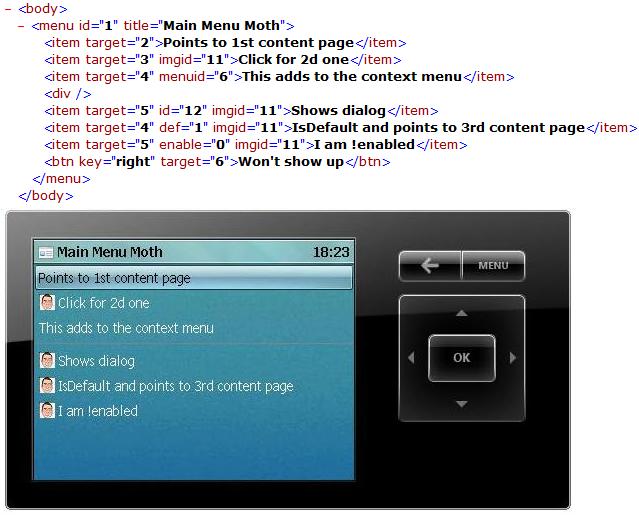
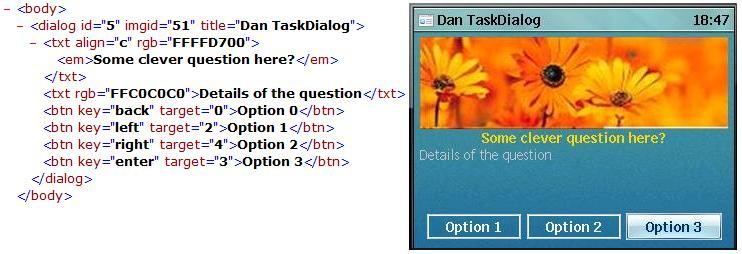
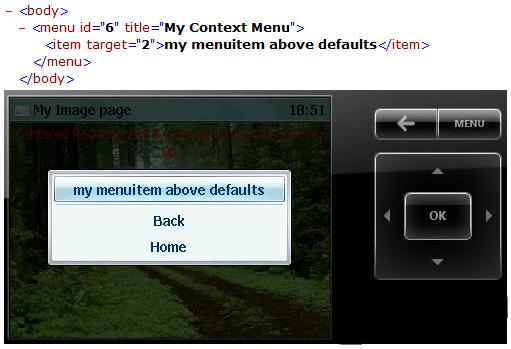
var scfXmlcontent = "<body><menu id='1' title='My menu'><item target='2'>I am a menu</item></menu></body>";So, on your previous screenshot if you now click on the SideShow's OK button you'll get the following:
System.Gadget.SideShow.addText(1, scfXmlcontent);

Clearly, if you select the menu item then you'll get a "Page not found" message because we haven't send any other page with an id=2. I leave that as an exercise to you.
NOTES:
Of course, it would be great if whatever you render on your Sidebar gadget automatically got sent to the SideShow device but as you see above, that is not the case. However, the crucial part of building gadgets in general is getting the content that you want to show: you only need fetch that once and then you just need to package it twice (html for Sidebar and SCF for SideShow).
Note that if you want to send images that you reference by id in your SCF pages, then you must use the addImage API. When you visit the APIs, ignore their advice to check for the enabled method because it apparently always returns true. Also note that when you want to update the same content id, it is best that you call the remove method first and the send down the new content corresponding to the id. You should also not bother with notifications or events for combined gadgets, since the applicationEvent is non-functioning.
DOWNLOAD:
Should you wish to play with the simple sample I described here and you are too lazy to type it yourself, download this ZIP on your Vista machine and then execute the daniel.gadget inside it. To see a fully fledged proper gadget and not the Hello World demo I created, download the StocksPlus combined gadget (it is the Stocks gadget you have in your box, enhanced to support SideShow). Whichever gadget your download, first make sure the SideShow Simulator is running already! Enjoy :)
Friday, June 08, 2007
While prepping for an event in Amsterdam next week, I am revisiting all my content from last year to do with Vista for managed developers. A very small part of the presentation is showing the WinForms controls and what additional things you can do with them in Vista such as the TextBox cue banner, commandlink button, treeviewvista, adding shield to clickable controls etc.
It occurred to me that I never looked at the ProgressBar control. In Vista, in addition to NORMAL (green), the control can be in a state of PAUSE (yellow) and ERROR (red). However, the managed ProgressBar control does not expose a managed way of controlling that. Once again, PInvoke to the rescue:
For a more complete reusable wrapper of the ProgressBar (inc. some other features that I have not covered) check out the code from the VistaControls project on codeplex.
It occurred to me that I never looked at the ProgressBar control. In Vista, in addition to NORMAL (green), the control can be in a state of PAUSE (yellow) and ERROR (red). However, the managed ProgressBar control does not expose a managed way of controlling that. Once again, PInvoke to the rescue:
// Assuming a Form1 with 3 ProgressBar controls
private void Form1_Load(object sender, EventArgs e)
{
SendMessage(progressBar2.Handle,
0x400 + 16, //WM_USER + PBM_SETSTATE
0x0003, //PBST_PAUSED
0);
SendMessage(progressBar3.Handle,
0x400 + 16, //WM_USER + PBM_SETSTATE
0x0002, //PBST_ERROR
0);
}
[DllImport("user32.dll", CharSet = CharSet.Unicode)]
static extern uint SendMessage(IntPtr hWnd,
uint Msg,
uint wParam,
uint lParam);

For a more complete reusable wrapper of the ProgressBar (inc. some other features that I have not covered) check out the code from the VistaControls project on codeplex.
Labels: Vista
Thursday, May 17, 2007
Oh, how happy I was when Orcas started using the Vista CommonFileDialog. Oh, how pissed off I get when applications on Vista still use the old legacy dialog. One of the applications I use a lot is Reflector and for a while I've been nagging Lutz on IM and email to make Reflector use the new OpenFileDialog, but nothing came of my harassment. Until recently when I noticed that Reflector indeed started showing me the new dialog so I thanked Lutz for finally listening. His reply was that he wasn't aware of it and he had changed nothing other than it now forces it to run against 2.0.50727 using a config file. That put me on a hunt!
The result of the hunt was that with the "Orcas" update of v2.0.50727 (remember how I explained this a few hours ago) the System.Windows.Forms.OpenFileDialog has had an internal implementation change that makes it detect if it is on Vista and puts the correct dialog up, rather than the legacy one (on a legacy OS like XP, it will show the old dialog of course). Using reflector, the place to look is FileDialog.RunDialogVista called by FileDialog.RunDialog which is called by CommonDialog.ShowDialog. Great news!
So I then wanted to see if the WPF version has also been updated, in which case half of VistaBridge would be obsolete (the TaskDialog half would still be useful of course). Unfortunately, the WPF version of OpenFileDialog (residing in Microsoft.Win32 namespace in the PresentationFramework.dll) has not been updated. I am confident that it will happen by RTM, but in the meantime from your WPF projects you can reference the System.Windows.Forms.dll and use its Open/SaveFileDialog instead.
The result of the hunt was that with the "Orcas" update of v2.0.50727 (remember how I explained this a few hours ago) the System.Windows.Forms.OpenFileDialog has had an internal implementation change that makes it detect if it is on Vista and puts the correct dialog up, rather than the legacy one (on a legacy OS like XP, it will show the old dialog of course). Using reflector, the place to look is FileDialog.RunDialogVista called by FileDialog.RunDialog which is called by CommonDialog.ShowDialog. Great news!
So I then wanted to see if the WPF version has also been updated, in which case half of VistaBridge would be obsolete (the TaskDialog half would still be useful of course). Unfortunately, the WPF version of OpenFileDialog (residing in Microsoft.Win32 namespace in the PresentationFramework.dll) has not been updated. I am confident that it will happen by RTM, but in the meantime from your WPF projects you can reference the System.Windows.Forms.dll and use its Open/SaveFileDialog instead.
Wednesday, May 16, 2007
One of the namespaces in the new System.Core.dll is System.Diagnostics.PerformanceData. It is a set of classes that wrap a new set of performance counter APIs (in Advapi32.dll) that are applicable only to Vista and higher. Here is a class diagram followed by an explanation:

Rather than actual code, here are the steps for working with the set of classes above.
1. Create a CounterSet object specifying the CounterSetInstanceType
2. On this instance, call AddCounter specifying an integer id and a CounterType (plus optionally a name) [repeat this step as desired]
3. Once done repeating step 2, call CreateCounterSetInstance to obtain a CounterSetInstance object.
4. On the object of step 3, via its Counters property get an instance of the collection object: CounterSetInstanceCounterDataSet
5. From this collection, retireve the CounterData objects either via the integer id or by name
6. Only one long Value property on the CounterData objects to tell you what you are after
In case you are wondering, step 1 above wraps PerfStartProvider and step 3 wraps three APIs in sequence: PerfSetCounterSetInfo, PerfCreateInstance and PerfSetCounterRefValue. If you look at the native signatures and the "cute" structures they expect you to setup, then you'll realise why it has been wrapped for us :-)

Rather than actual code, here are the steps for working with the set of classes above.
1. Create a CounterSet object specifying the CounterSetInstanceType
2. On this instance, call AddCounter specifying an integer id and a CounterType (plus optionally a name) [repeat this step as desired]
3. Once done repeating step 2, call CreateCounterSetInstance to obtain a CounterSetInstance object.
4. On the object of step 3, via its Counters property get an instance of the collection object: CounterSetInstanceCounterDataSet
5. From this collection, retireve the CounterData objects either via the integer id or by name
6. Only one long Value property on the CounterData objects to tell you what you are after
In case you are wondering, step 1 above wraps PerfStartProvider and step 3 wraps three APIs in sequence: PerfSetCounterSetInfo, PerfCreateInstance and PerfSetCounterRefValue. If you look at the native signatures and the "cute" structures they expect you to setup, then you'll realise why it has been wrapped for us :-)
Friday, April 27, 2007
This is a question I get often:
So the only question to answer programmatically is how to know if the user has admin rights. I have shown how to do this before but here goes again:
If you disagree and think you have a genuine reason for knowing more than what I describe above, then please post your scenario to the relevant forum linked to from here.
"How can I determine if User Account Control is on or off via code?"The answer I always give:
"You are asking the wrong question. Who cares?"The point being that, regardless of whether the user has turned off UAC or not, your application should still be partitioned and work correctly for both admins and non-admin users. It is irrelevant if UAC is on or off. You should still display the shields, you should still gracefully fail if the user is not an admin (same as you would if the elevation prompt came up and the user cancelled, same as you should if you were running on XP). The academic answer to the original question is that you can read it from the registry (much like the built-in Security Centre does). Since there is no genuine requirement to know this stuff from code, there is no API for it.
So the only question to answer programmatically is how to know if the user has admin rights. I have shown how to do this before but here goes again:
// using System.Security.Principle;I have read blogs where others get further information regarding elevation about the user's account by pinvoking native APIs, but again, I remain totally unconvinced about that need. Your app shouldn't care about anything else: all that matters is if the user has admin rights at the moment your admin code is about to execute, nothing else.
private bool IsAdmin()
{
WindowsIdentity id = WindowsIdentity.GetCurrent();
WindowsPrincipal p = new WindowsPrincipal(id);
return p.IsInRole("Administrators");
}
If you disagree and think you have a genuine reason for knowing more than what I describe above, then please post your scenario to the relevant forum linked to from here.
Wednesday, April 25, 2007
At some point I must find time to continue my series of blog posts on the Windows SideShow technology that ships with Vista. But until then, if you've wanted to play with this stuff but couldn't be bothered to download the Windows SDK (shame on you btw!), now you have the option of downloading the Device Simulator as standalone (and it is a newer version too!). Go get it.

Thursday, April 19, 2007
You've probably read my posts on UAC (tip: read bottom up), and in my talks I always explain how to factor out into separate processes any admin functionality.
What I've never explained is how to factor into out-of-proc COM objects the admin functionality. Christoph has explained that on his blog and has done it all in managed code no less! Check his posts out starting here (and follow his links for the rest).
By now you all know about the VistaBridge sample that is part of the Windows SDK. I hope you also know about Project Glidepath. Apparently, the guys behind glidepath thought it was too much effort for a developer to have to type code that simply sets properties like the code shown here, so they created a package where you simply make selections with the mouse and the code gets spat out for you!
Definitely worth watching the 5 minute screencast (follow their link).
Labels: Vista
Friday, March 30, 2007
When I do my talk showing how to call Vista-only native APIs to enhance your Windows Forms applications on Vista, occasionally someone asks about achieving the same in Windows Presentation Foundation (WPF). My answer is always the same of course: "WPF does not include any Vista-only APIs so you still have to pinvoke for the features that I demonstrate."
For example, many features rely on overriding the WndProc method to hook into the main message loop and deal with some windows message (WM_):
protected override void WndProc(ref Message m)In WPF you can achieve that with code like this:
{
// e.g. deal with message for
// composition changed, power state notification, restart manager aware etc
}
void Window1_Loaded(object sender, RoutedEventArgs e)While the previous statement/reply/example is true, some of the things I show in my talk rely on using a control's handle. For example, adding a shield to a button (for UAC), the new button style known as CommandLink, TextBox cue banner, Vista TreeView etc. In those cases, for WPF you can't use pinvoke to SendMessage or subclass the control (Get/SetWindowLong etc) since the WPF controls are drawn from scratch. Instead, you have to manually draw the effect you are after. The Windows SDK has an example of a CommandLink fully drawn for WPF but I couldn't see any of the others (e.g. a button with a shield) so this is a great opportunity for a WPF developer to flex their creativity muscles and create the Vista control behaviours/appearances for WPF (since pinvoking doesn't help there). Be sure to let me know if you get round to implementing anything like that in the public domain...
{
source = HwndSource.FromHwnd(new WindowInteropHelper(this).Handle);
source.AddHook(new HwndSourceHook(WndProc));
}
private static IntPtr WndProc(IntPtr hwnd, int msg, IntPtr wParam, IntPtr lParam, ref bool handled)
{
// TODO handle WM_
}
Labels: Vista
Regular readers will recall my blog entries about managed preview handlers on Vista. Rajesh dropped me a comment pointing to his codeproject article. Let him know what you think.
One of the aspects I like about his preview handler is that it uses a tooltip to offer more info. Regardless of how easy/hard the visualization of a file is, adding a tooltip for extra info is a simple yet awesome idea IMO - good job!
Labels: Vista
Tuesday, March 27, 2007
I've been meaning to rant about this and Sahil gave me the incentive with his wish list for IE8 and Vista.
The 2nd wish item on his list for Internet Explorer is:
In fact, the Restart API is an area where unfortunately I am seeing a pattern of our product teams taking advantage of only half the feature (the restart bit, without the restoring state bit). The Visual Studio Codename Orcas March CTP is an application that made me smile in a very positive way when it crashed on Vista (where it is not supported) and I observed that it restarted after sending the error report. But again to my dismay, it simply restarted and left it at that. Hopefully by the time it ships, the team will implement the rest of the feature so when it restarts it also attempts to open the last solution I was working on.
Now, there is a (weak) argument either of the teams above can make that goes as follows: "If when we restart, after a crash, we try to restore the last opened tab/project, then we run the risk of ending up in a cyclical restart". This is a weak argument for two reasons:
1. The API can protect you against cyclical restarts (look at the 2nd parameter of the function from the link above and also the 60 second rule I describe in the video linked above)
2. I would expect dialog that has words to this effect: "We are sorry you experienced an issue with this application, an error report has been sent. Would you like to open the last solution/web page you were looking at? NOTE: This may cause the application to crash again!". And after displaying that message, if the user chooses to continue and they crash again, the next time don't put up the dialog and don't try to restore state.
This isn't rocket science. We have a fantastic feature in Vista; the teams have started to take advantage of it but just falling short in the end. IE7 has shipped of course, but I remain hopeful for "Orcas" to be smarter about this by RTM...
The 2nd wish item on his list for Internet Explorer is:
"When IE crashes, there should be an option for it to restore state, i.e. re-open the tabs I had opened when it crashed."IE7 has crashed on me in the past and I do recall the behaviour that Sahil is referring to which, for those of you not running Vista, is that IE7 restarts so you don't have to restart it yourself :-). Cool, but IE7 restarts with the default home page(s), instead of opening my last browsed tabs and that is not cool. The reason this really gets to me is that I know it is so darn easy to implement the feature!
In fact, the Restart API is an area where unfortunately I am seeing a pattern of our product teams taking advantage of only half the feature (the restart bit, without the restoring state bit). The Visual Studio Codename Orcas March CTP is an application that made me smile in a very positive way when it crashed on Vista (where it is not supported) and I observed that it restarted after sending the error report. But again to my dismay, it simply restarted and left it at that. Hopefully by the time it ships, the team will implement the rest of the feature so when it restarts it also attempts to open the last solution I was working on.
Now, there is a (weak) argument either of the teams above can make that goes as follows: "If when we restart, after a crash, we try to restore the last opened tab/project, then we run the risk of ending up in a cyclical restart". This is a weak argument for two reasons:
1. The API can protect you against cyclical restarts (look at the 2nd parameter of the function from the link above and also the 60 second rule I describe in the video linked above)
2. I would expect dialog that has words to this effect: "We are sorry you experienced an issue with this application, an error report has been sent. Would you like to open the last solution/web page you were looking at? NOTE: This may cause the application to crash again!". And after displaying that message, if the user chooses to continue and they crash again, the next time don't put up the dialog and don't try to restore state.
This isn't rocket science. We have a fantastic feature in Vista; the teams have started to take advantage of it but just falling short in the end. IE7 has shipped of course, but I remain hopeful for "Orcas" to be smarter about this by RTM...
Labels: Vista
Wednesday, March 14, 2007
While I have previously described Restart Manager, I never thought to use it in this cool way even though the question definitely is something I have asked myself in the past! Keep reading...
Answer: Stephen to the rescue!
Question: When my application attempts to access a file, I get access-denied errors because the file is in use by another application. In the past, I've used tools from Sysinternals (microsoft.com/technet/sysinternals) to figure out what that other application is, but I'd like to be able to discover this programmatically from within my application. Is there a way to programmatically determine what processes are currently using a specific file?
Answer: Stephen to the rescue!
Labels: Vista
Tuesday, March 06, 2007
Following the SP1 for VS2005, the update for Windows Vista is now also available. Get it here (especially if you are doing web development on Vista).
This is what my VS about box looks like after I installed it:

Also see Soma's relevant Q&A.
This is what my VS about box looks like after I installed it:

Also see Soma's relevant Q&A.
Labels: Vista
Thursday, March 01, 2007
Whenever I see an application on Vista that shows the old file dialog, I cringe (sorry, it is true). So given that I "live" in VS2005, it is the one that irritates me the most every day in that respect. It is easy to show it from native code and I have talked about the managed wrapper in VistaBridge before.
I've been waiting for a VS "Orcas" build that uses the new CommonOpenFileDialog when running on Vista and the March CTP does just that. All I can say is "WOO HOO".

I've been waiting for a VS "Orcas" build that uses the new CommonOpenFileDialog when running on Vista and the March CTP does just that. All I can say is "WOO HOO".

Wednesday, February 28, 2007
Monday, February 05, 2007
Out of all the work I’ve done over the past year, I get the most “thank you” notes for the screencast introducing Sidebar and gadgets. Many of the emails I receive include a request for more info on Sidebar gadget development.
In addition to the ones at the end of my Sidebar blog entry (in FAQ format), I usually point to two other articles, included here for future reference:
1. OdeToCode article.
2. UKStudentzine article (from a student on our team :)).
Lastly, I received an email from Danny Espinoza asking me to try their product. Even though the description looks interesting, I don’t have the time right now to play with it; maybe someone reading my blog will want to try out their widget converter.
For Sidebar gadget support questions, please use the dedicated forum.
In addition to the ones at the end of my Sidebar blog entry (in FAQ format), I usually point to two other articles, included here for future reference:
1. OdeToCode article.
2. UKStudentzine article (from a student on our team :)).
Lastly, I received an email from Danny Espinoza asking me to try their product. Even though the description looks interesting, I don’t have the time right now to play with it; maybe someone reading my blog will want to try out their widget converter.
For Sidebar gadget support questions, please use the dedicated forum.
Labels: Vista
Wednesday, January 31, 2007
Remember the awesome Managed Preview Handler Framework for Vista and Outlook? Visit the author’s blog to download a Preview Handler Association editor.
I also found a preview handler, written with the framework, which is for code file extensions such as .cs, .vb, .js and .sql (link to download here).
Given that the visual effect is best described with a video, I’ve recorded a screencast on the topic.
After recording the video I came up with a slightly more useful preview handler than the one I showed there. How many times have you wanted to quickly extract the FullName or specifically the PublicKeyToken from a strong-named assembly? So I thought I’d write a managed preview handler that works for managed DLLs and shows some quick info when you select the file in explorer as the following screenshot shows:

Like the demo preview handler shown in the screencast, only one method has real code and I am sure you can imagine what it looks like... and if not, get it here (demoware).
...and remember that preview handlers also work in Outlook 2007... I guess that is what they mean when they say "better together" ;-)
I also found a preview handler, written with the framework, which is for code file extensions such as .cs, .vb, .js and .sql (link to download here).
Given that the visual effect is best described with a video, I’ve recorded a screencast on the topic.
After recording the video I came up with a slightly more useful preview handler than the one I showed there. How many times have you wanted to quickly extract the FullName or specifically the PublicKeyToken from a strong-named assembly? So I thought I’d write a managed preview handler that works for managed DLLs and shows some quick info when you select the file in explorer as the following screenshot shows:

Like the demo preview handler shown in the screencast, only one method has real code and I am sure you can imagine what it looks like... and if not, get it here (demoware).
...and remember that preview handlers also work in Outlook 2007... I guess that is what they mean when they say "better together" ;-)
Labels: Vista
Tuesday, January 30, 2007
With Windows Vista now available for everyone, 2-3 downloads are available for those running the Ultimate edition (as well as some other updates for everyone :-)).
This is what my Windows Update screen looked like today:

This is what my Windows Update screen looked like today:

Labels: Vista
Thursday, January 18, 2007
I am really pleased that Scott is jumping on the SideShow train :-)
Windows SideShow provides an opportunity for every manufacturer that has a device with a screen on it to SideShow-enable it. It also provides an opportunity for all application developers to extend the reach of their application by either directly calling the SideShow API from their existing app to send content to SideShow-compatible displays, or to write a new non-UI process (a SideShow gadget) that sends the content.
There is another opportunity here for ISVs. Provide a graphical designer for generating SCF, which application developers can then easily send down to the devices. Crafting SCF by hand or using the managed API’s Scf class is trivial but still not as smooth as using a graphical designer (a bit like designing Windows Forms without the designer or even closer a bit like crafting XAML by hand without "Sparkle"/"Cider").
So what are you waiting for? The schema is there, the elements (think controls) have only a few attributes (think properties) and there can only be a single element/control per row/line... show me what you can do!
UPDATE: The Microsoft.SideShow.dll (written by Jeffrey Richter) that I have been using in all my posts is now publicly available. Details here :-)
Windows SideShow provides an opportunity for every manufacturer that has a device with a screen on it to SideShow-enable it. It also provides an opportunity for all application developers to extend the reach of their application by either directly calling the SideShow API from their existing app to send content to SideShow-compatible displays, or to write a new non-UI process (a SideShow gadget) that sends the content.
There is another opportunity here for ISVs. Provide a graphical designer for generating SCF, which application developers can then easily send down to the devices. Crafting SCF by hand or using the managed API’s Scf class is trivial but still not as smooth as using a graphical designer (a bit like designing Windows Forms without the designer or even closer a bit like crafting XAML by hand without "Sparkle"/"Cider").
So what are you waiting for? The schema is there, the elements (think controls) have only a few attributes (think properties) and there can only be a single element/control per row/line... show me what you can do!
UPDATE: The Microsoft.SideShow.dll (written by Jeffrey Richter) that I have been using in all my posts is now publicly available. Details here :-)
In an older post I highlighted one of the changes in the TreeView control in Vista’s explorer:
If you take a further look at the explorer TreeView you’ll notice that in addition to the autoscroll functionality previously described, there are also some aesthetic changes:
1. The selected TreeNode has a highlight rectangle but it is not the heavy blue that it was on legacy versions of Windows.
2. When hovering over non-selected TreeNodes, the node under the mouse also gets a very light blue rectangle.
3. Rather than ‘plus’ and ‘minus’ signs before each node (used for expanding/collapsing) it has some small triangles (filled with black, empty or highlighted with blue).
E.g. in the following picture the “inetpub” folder is highlighted while my mouse is over the “logs” folder:

So I was looking at how I can make my managed TreeView have the same feel and look. The answer is in the Vista MSDN forums: you have to call SetWindowTheme API from the uxtheme.dll as follows:
As an aside, you can use this exact code with the ListView control as well :-)
Note that for the managed TreeView you also have to set to
So, next thing I noticed is that the explorer TreeView also auto hides the +/- replacements i.e. it auto hides the little triangles. It was easier finding out how to achieve that since I had already seen a list of new Vista TreeView constants which is where the inspiration for the blog entry on TVS_EX_AUTOHSCROLL came from. The answer is to add to the TreeView's extended style the TVS_EX_FADEINOUTEXPANDOS:
I have updated the two code files, which I posted last time, to incorporate these additions and you can get them from the same place: NativeMethods.cs and TreeViewVista.cs (the comments in the code are self-explanatory I hope).
Finally, note that you can pick and choose which feature you want. For example Windows Mail on Vista clearly sets the “explorer” theme (and HotTracking=true and ShowLines=false), but does not set the extended styles at all (so no auto-fading and no auto-scrolling)...
"...the treeview has no horizontal scrollbar at the bottom and scrolling happens for you automatically as you select nodes that are not fully visible and as you mouse over around..."I then offered some code that makes the
System.Windows.Forms.TreeView control behave the same way.If you take a further look at the explorer TreeView you’ll notice that in addition to the autoscroll functionality previously described, there are also some aesthetic changes:
1. The selected TreeNode has a highlight rectangle but it is not the heavy blue that it was on legacy versions of Windows.
2. When hovering over non-selected TreeNodes, the node under the mouse also gets a very light blue rectangle.
3. Rather than ‘plus’ and ‘minus’ signs before each node (used for expanding/collapsing) it has some small triangles (filled with black, empty or highlighted with blue).
E.g. in the following picture the “inetpub” folder is highlighted while my mouse is over the “logs” folder:

So I was looking at how I can make my managed TreeView have the same feel and look. The answer is in the Vista MSDN forums: you have to call SetWindowTheme API from the uxtheme.dll as follows:
SetWindowTheme(treeView1.Handle, "explorer", null);As an aside, you can use this exact code with the ListView control as well :-)
Note that for the managed TreeView you also have to set to
true the HotTracking property (and for identical look, to false the ShowLines property).So, next thing I noticed is that the explorer TreeView also auto hides the +/- replacements i.e. it auto hides the little triangles. It was easier finding out how to achieve that since I had already seen a list of new Vista TreeView constants which is where the inspiration for the blog entry on TVS_EX_AUTOHSCROLL came from. The answer is to add to the TreeView's extended style the TVS_EX_FADEINOUTEXPANDOS:
NativeMethods.SendMessage(treeView1.Handle,...of course to add the style rather than just set it, first you have to retrieve the existing style and then bitwise OR it with the TVS_EX_FADEINOUTEXPANDOS style.
NativeMethods.TVM_SETEXTENDEDSTYLE, 0,
NativeMethods.TVS_EX_FADEINOUTEXPANDOS);
I have updated the two code files, which I posted last time, to incorporate these additions and you can get them from the same place: NativeMethods.cs and TreeViewVista.cs (the comments in the code are self-explanatory I hope).
Finally, note that you can pick and choose which feature you want. For example Windows Mail on Vista clearly sets the “explorer” theme (and HotTracking=true and ShowLines=false), but does not set the extended styles at all (so no auto-fading and no auto-scrolling)...
Labels: Vista
Monday, January 08, 2007
Just before leaving for CES, Dan Polivy recorded a short video for on10 showing off 8 SideShow-compatible devices: Asus laptop, LG Z1-p laptop, credit card companion device, remote controls from 3 different manufacturers and Logitech keyboard & speakers!
As always with cool gadgets words are not enough so check out the video and drool :-)
I wonder if the guy behind SideShowDevices will be posting pictures of all these soon...
UPDATE: Also spotted at CES, wearable SideShow device (thanks Keeron Modi for the heads up).
As always with cool gadgets words are not enough so check out the video and drool :-)
I wonder if the guy behind SideShowDevices will be posting pictures of all these soon...
UPDATE: Also spotted at CES, wearable SideShow device (thanks Keeron Modi for the heads up).
Monday, January 01, 2007
Exactly two years ago on New Year's day, I wrote the Best of "The Moth" 2004 blog enrty where I picked my favorite blog entries out of 96 posts. Exactly one year ago I had to choose from 151 posts to find the ones I thought were the best in terms of content and the result was the Best of "The Moth" 2005.
The year of 2006 I made 142 blog entries and below are a select few. Happy New Year!
01. I didn't have a chance to play with it as much as I wanted to, but with very little public info available, this blog served it well: .NET Micro Framework, its product sheet and other NETMF links.
02. Recognising an idiom of the using statement.
03. A cute desktop feature implemented for the Windows Mobile/WinCE platform in a reusable NETCF control: TextBox cue banner.
04. A picture is worth a 100 words and a video is... a whole bunch of pictures! Check mine out following the instructions here for my nuggets.
05. A comprehensive collection of links for Windows Workflow Foundation (WF).
06. I collected the links to my 9 blog posts on sharing assets between desktop and mobile platforms in one place. Follow the numbered links.
07. The most controversial feature of Windows Vista is something every developer must understand: User Account Control.
08. One of Vista's features is becoming my obsession and that is SideShow. My series of SideShow gadgets blog posts will continue in 2007 and so far you can read parts one, two, three, four and five.
09. I spent 6 months last year focusing almost entirely on Vista developer features that are new and that are *not* part of NetFx3. I have catalogued my blogging & screencasting efforts in a large collection of links to content that supports my speaking engagements on Vista. IMO this blog post alone could have been the best of "The Moth" this year:
The year of 2006 I made 142 blog entries and below are a select few. Happy New Year!
01. I didn't have a chance to play with it as much as I wanted to, but with very little public info available, this blog served it well: .NET Micro Framework, its product sheet and other NETMF links.
02. Recognising an idiom of the using statement.
03. A cute desktop feature implemented for the Windows Mobile/WinCE platform in a reusable NETCF control: TextBox cue banner.
04. A picture is worth a 100 words and a video is... a whole bunch of pictures! Check mine out following the instructions here for my nuggets.
05. A comprehensive collection of links for Windows Workflow Foundation (WF).
06. I collected the links to my 9 blog posts on sharing assets between desktop and mobile platforms in one place. Follow the numbered links.
07. The most controversial feature of Windows Vista is something every developer must understand: User Account Control.
08. One of Vista's features is becoming my obsession and that is SideShow. My series of SideShow gadgets blog posts will continue in 2007 and so far you can read parts one, two, three, four and five.
09. I spent 6 months last year focusing almost entirely on Vista developer features that are new and that are *not* part of NetFx3. I have catalogued my blogging & screencasting efforts in a large collection of links to content that supports my speaking engagements on Vista. IMO this blog post alone could have been the best of "The Moth" this year:
Vista-only features for the managed developer.Stay tuned in 2007 via one of the subscribe options on the left :-)
Labels: dot NET general, Links, Mobile and Embedded, Vista
Saturday, December 30, 2006
When I introduced the SideShow gadget fundamentals, I listed 3 types of communication between the gadget running on the PC and the SideShow-compatible device. You know how to design your SCF content and then download it via the managed API. Here I will introduce notifications and events.
Notification
Sending a notification down to the device takes one line of code, given that you already have a ScfSideShowGadget reference as described before:

The notification will time out after the timeout period specified or the user can manually dismiss it with the ENTER button or, finally, you can programmatically dismiss a notification by its id e.g.
Events
There are 9 events that you can handle programmatically on the PC-side while the user performs actions. The following code shows hooking up to them
- DeviceAdded, DeviceRemoved, AllDevicesRemoved when SideShow-compatible device connect or disconnect from this gadget.
- MenuSelect, ContextMenuSelect when the user selects one of your menus or opens your contextmenus.
- ContentNavigate every time the user traverses from one SCF page to another.
- ContentMissing if a user action results in a request for a content id that is not on the device.
The event handler method signatures for these follow the standard .NET pattern of having two parameters. The first being the sender object and the second being a type that inherits from EventArgs. The following class diagram shows the EventArgs classes with their members so you can get an idea of the information you receive with each event mentioned above:

Stay tuned on this blog for more on SideShow gadget development in the new year ;-)
Notification
Sending a notification down to the device takes one line of code, given that you already have a ScfSideShowGadget reference as described before:
Icon ico = new Icon(@"C:\Users\Public\Pictures\SideShow\SSnotification.ico");Executing the above will result in the behaviour captured below on the SideShow simulator:
g.ShowNotification(
100, // unique content id
"some caption", // caption
"some message", // body
ico, // icon to appear on the far right of the body
TimeSpan.FromSecondss(30)); // timeout interval

The notification will time out after the timeout period specified or the user can manually dismiss it with the ENTER button or, finally, you can programmatically dismiss a notification by its id e.g.
g.RevokeNotification(100); or a more brutal approach g.RevokeAllNotifications;Events
There are 9 events that you can handle programmatically on the PC-side while the user performs actions. The following code shows hooking up to them
g.AllDevicesRemoved += new EventHandler(g_AllDevicesRemoved);- GadgetEnter, GadgetExit when the user navigates from the glance data page (id=0) to the SCF pages and back.
g.ContentMissing += new EventHandler <ContentMissingEventArgs> (g_ContentMissing);
g.ContentNavigate += new EventHandler <ContentNavigateEventArgs> (g_ContentNavigate);
g.ContextMenuSelect += new EventHandler <ContextMenuSelectEventArgs> (g_ContextMenuSelect);
g.DeviceAdded += new EventHandler <DeviceCapabilityEventArgs> (g_DeviceAdded);
g.DeviceRemoved += new EventHandler <DeviceCapabilityEventArgs> (g_DeviceRemoved);
g.GadgetEnter += new EventHandler(g_GadgetEnter);
g.GadgetExit += new EventHandler(g_GadgetExit);
g.MenuSelect += new EventHandler <MenuSelectEventArgs>(g_MenuSelect);
- DeviceAdded, DeviceRemoved, AllDevicesRemoved when SideShow-compatible device connect or disconnect from this gadget.
- MenuSelect, ContextMenuSelect when the user selects one of your menus or opens your contextmenus.
- ContentNavigate every time the user traverses from one SCF page to another.
- ContentMissing if a user action results in a request for a content id that is not on the device.
The event handler method signatures for these follow the standard .NET pattern of having two parameters. The first being the sender object and the second being a type that inherits from EventArgs. The following class diagram shows the EventArgs classes with their members so you can get an idea of the information you receive with each event mentioned above:

Stay tuned on this blog for more on SideShow gadget development in the new year ;-)
Friday, December 22, 2006
In the past, if you had to develop control panel items you would start thinking about .cpl files. With Windows Vista, there seems to be a tendency to take advantage of the new ability to create them in separate executables! Those of you that know me long enough can see where I am going with this... it means that we can develop these in managed code now :-)
I will assume that you have a scenario for actually integrating with the control panel and I will just share the mechanics. Create your managed Windows Forms application and give it whatever UI you want. You actually don’t have to do anything special in the project. In fact, you could even reuse your existing main application and just use a command line option for when it gets launched from the control panel.
So once you have the exe, how do you integrate it with the control panel? The answer is by adding some registry entries.
1. Buy yourself a GUID. In all my screenshots below, replace my guid ({ABB4AAE7-3D21-45f7-AA1C-F470FAB07B89}) for the one you have.
2. Create a key with this GUID under HKLM at the path shown in the screenshot below (hint: look at the statusbar):

3. Do the same this time under HKCR at the path shown in the screenshot below:

4. Look at the values for the screenshot above. For the first 3 values you can enter anything you like. The last value points to a path and do not worry about that right now. The 4th value (System.ControlPanel.Category) tells the system under which category you want a link to your executable to appear in. I’ve chosen 7 and 9 which are the “User Accounts” and “Ease of Access” categories. The following screenshot shows the effect of the few registry entries we created. Note how values from above match the UI (inc. tooltip).

You can find your link under both aforementioned categories and it is immediately searchable as well.
5. If you click on your item, explorer.exe will show an error box “Application not found”. Close the control panel and let’s go make one more registry entry. Create 3 subkeys as shown in the following screenshot and note how the default value under Command specifies the path to the executable (you could have specified a command line argument if you wanted):

Launch the control panel again, and this time when clicking on your link, your application will open.
Also, remember the string we entered for the System.ApplicationName registry value? If you entered the same as me, you can now launch your application from the command line
6. An optional additional step is to specify task links under your item. This is where the path to the file we mentioned above comes in. At the moment your

If you navigate to the “Ease of Access” category, you’ll find a slight variation as shown in the screenshot behind this link.
More Info
There is a lot more to check out including how to change the icon that appears in the control panel, what the numbers for the other categories are, how to launch other items from the command line, design guidelines, explanations on the XML file for tasks, creating cpl items, what else is new in Vista and a lot more. The following msdn links should cover that material for you:
Tour of UI
Quick intro similar to mine
UX guidelines for control panels
Comprehensive control panel overview
I will assume that you have a scenario for actually integrating with the control panel and I will just share the mechanics. Create your managed Windows Forms application and give it whatever UI you want. You actually don’t have to do anything special in the project. In fact, you could even reuse your existing main application and just use a command line option for when it gets launched from the control panel.
So once you have the exe, how do you integrate it with the control panel? The answer is by adding some registry entries.
1. Buy yourself a GUID. In all my screenshots below, replace my guid ({ABB4AAE7-3D21-45f7-AA1C-F470FAB07B89}) for the one you have.
2. Create a key with this GUID under HKLM at the path shown in the screenshot below (hint: look at the statusbar):

3. Do the same this time under HKCR at the path shown in the screenshot below:

4. Look at the values for the screenshot above. For the first 3 values you can enter anything you like. The last value points to a path and do not worry about that right now. The 4th value (System.ControlPanel.Category) tells the system under which category you want a link to your executable to appear in. I’ve chosen 7 and 9 which are the “User Accounts” and “Ease of Access” categories. The following screenshot shows the effect of the few registry entries we created. Note how values from above match the UI (inc. tooltip).

You can find your link under both aforementioned categories and it is immediately searchable as well.
5. If you click on your item, explorer.exe will show an error box “Application not found”. Close the control panel and let’s go make one more registry entry. Create 3 subkeys as shown in the following screenshot and note how the default value under Command specifies the path to the executable (you could have specified a command line argument if you wanted):

Launch the control panel again, and this time when clicking on your link, your application will open.
Also, remember the string we entered for the System.ApplicationName registry value? If you entered the same as me, you can now launch your application from the command line
control /name Daniel.MothPanelApplet 6. An optional additional step is to specify task links under your item. This is where the path to the file we mentioned above comes in. At the moment your
System.Software.TasksFileUrl value points to an invalid path. Make it point to this file after you copy it to your machine. Close Control Panel and after reopening it, under “User Accounts”, you find a something like the following:
If you navigate to the “Ease of Access” category, you’ll find a slight variation as shown in the screenshot behind this link.
More Info
There is a lot more to check out including how to change the icon that appears in the control panel, what the numbers for the other categories are, how to launch other items from the command line, design guidelines, explanations on the XML file for tasks, creating cpl items, what else is new in Vista and a lot more. The following msdn links should cover that material for you:
Tour of UI
Quick intro similar to mine
UX guidelines for control panels
Comprehensive control panel overview
Labels: Vista
Tuesday, December 19, 2006
Open your windows explorer on Vista and click around the “Folders” section in the left (below your “Favorite Links”). Do you observe two things that were not there pre-Vista? That is right, the treeview has no horizontal scrollbar at the bottom and scrolling happens for you automatically as you select nodes that are not fully visible and as you mouse over around. Resize that area to be smaller if you are not observing this effect. Now do you notice the effect? Cool :)
It turns out that you can make any TreeView behave like that, if you want to. The clue for me was accidentally coming across the TVS_EX_AUTOHSCROLL constant.
<this took me longer than what it should>
I must admit that it took me a while to get this working. First when my simple mind encountered extended style it thought: “I know those and I know how to change them for managed controls”. So I overrode CreateParams and changed the ExStyle property but that had no effect. I then assumed that the reason it wasn’t working was because I had to send it the TVM_SETAUTOSCROLLINFO message so I played with that, messing with various values since the documentation gives no clue to sensible starters and then gave up when I was still not observing the results. BTW, spy++ wasn’t helping much since prolongued use caused the machine to freeze and rebooting added to my overall frustration. Eventually a virtual slap made me realise that I need to send a custom message for the extended treeview style (not window style). Digging around I found the TVM_SETEXTENDEDSTYLE message and tried sending that. Another round of trials and errors with no luck; only after opening commctrl.h I could work out what params to send and in what order. I knew the messages were reaching the TreeView as I started using my own TreeView and overriding DefWndProc with debug statements to make sure that the message wasn't been swallowed by the managed implementation. A complete red herring came out of nowhere questioning whether I was using v6 of comctl32.dll (of course I was, my commandlinkbutton etc worked fine, but to be positive, I manifested the assembly to make sure that was indeed the case). At this point, you can imagine that I was hacking at this API for quite a while, editing code and then running the project. At some point I got lazy and my test of whether it worked or not was: Does an hscrollbar appear in the treeview. Well it turns out that, at least for the System.Windows.Forms.TreeView, the documentation is wrong: the hscrollbar does not go away with this style!! Doh! God knows how many times I had this working and thought I hadn’t because of the visual false positive :-(
</this should it what than longer me took>
Anyway, once I started testing properly again, not only it worked but I also realised that you don’t really need to send auto scroll info since it has some sensible defaults. So the bare minimum to get the TreeView to automatically scroll horizontally based on node selected and mouse position, is the following:
If you actually want to change the speed of auto scrolling combined with a scroll timeout, then you must do this:
And if you want to get rid of the hscrollbar to make it look like the windows explorer folder view, then you must do this:
The pinvoke declarations for this exercise are in this NativeMethods file here.
For those of you that don’t want to repeat the above hacks for every single treeview in every single project, I’ve put all of the above in a TreeViewVista control. Just find a project that uses a TreeView already and change the ctor line to use TreeViewVista instead :-)
It turns out that you can make any TreeView behave like that, if you want to. The clue for me was accidentally coming across the TVS_EX_AUTOHSCROLL constant.
<this took me longer than what it should>
I must admit that it took me a while to get this working. First when my simple mind encountered extended style it thought: “I know those and I know how to change them for managed controls”. So I overrode CreateParams and changed the ExStyle property but that had no effect. I then assumed that the reason it wasn’t working was because I had to send it the TVM_SETAUTOSCROLLINFO message so I played with that, messing with various values since the documentation gives no clue to sensible starters and then gave up when I was still not observing the results. BTW, spy++ wasn’t helping much since prolongued use caused the machine to freeze and rebooting added to my overall frustration. Eventually a virtual slap made me realise that I need to send a custom message for the extended treeview style (not window style). Digging around I found the TVM_SETEXTENDEDSTYLE message and tried sending that. Another round of trials and errors with no luck; only after opening commctrl.h I could work out what params to send and in what order. I knew the messages were reaching the TreeView as I started using my own TreeView and overriding DefWndProc with debug statements to make sure that the message wasn't been swallowed by the managed implementation. A complete red herring came out of nowhere questioning whether I was using v6 of comctl32.dll (of course I was, my commandlinkbutton etc worked fine, but to be positive, I manifested the assembly to make sure that was indeed the case). At this point, you can imagine that I was hacking at this API for quite a while, editing code and then running the project. At some point I got lazy and my test of whether it worked or not was: Does an hscrollbar appear in the treeview. Well it turns out that, at least for the System.Windows.Forms.TreeView, the documentation is wrong: the hscrollbar does not go away with this style!! Doh! God knows how many times I had this working and thought I hadn’t because of the visual false positive :-(
</this should it what than longer me took>
Anyway, once I started testing properly again, not only it worked but I also realised that you don’t really need to send auto scroll info since it has some sensible defaults. So the bare minimum to get the TreeView to automatically scroll horizontally based on node selected and mouse position, is the following:
NativeMethods.SendMessage(treeView1.Handle, NativeMethods.TVM_SETEXTENDEDSTYLE, 0, NativeMethods.TVS_EX_AUTOHSCROLL);
If you actually want to change the speed of auto scrolling combined with a scroll timeout, then you must do this:
NativeMethods.SendMessage(treeView1.Handle, NativeMethods.TVM_SETAUTOSCROLLINFO, 30, 10);
And if you want to get rid of the hscrollbar to make it look like the windows explorer folder view, then you must do this:
int num2 = (int)NativeMethods.GetWindowLong(treeView1.Handle, NativeMethods.GWL_STYLE);
num2 = NativeMethods.TVS_NOHSCROLL;
NativeMethods.SetWindowLong(treeView1.Handle, NativeMethods.GWL_STYLE, num2);
The pinvoke declarations for this exercise are in this NativeMethods file here.
For those of you that don’t want to repeat the above hacks for every single treeview in every single project, I’ve put all of the above in a TreeViewVista control. Just find a project that uses a TreeView already and change the ctor line to use TreeViewVista instead :-)
Labels: Vista
Friday, December 15, 2006
Those of you that have attended my talks on UAC will have seen the demo where we extract a process and run it elevated (i.e. an elevation prompt requires the consent of the user). Here I want to add some extra juice to that one.
For the rest of you, basically, if you have some admin task in your application that you cannot redesign (i.e. get rid of), you still should not mandate that your whole application runs elevated (i.e. requires admin privileges). Instead, you should refactor that functionality in a separate process. When you require the use of that admin functionality from your main application, launch the other process elevated to do the work for you. There are a few ways you can launch the application elevated but the best one in this case is to manifest the application. An example of a manifest is here; change the level from asInvoker to requireAdministrator. Embed it in your project by pasting the following line in the “Post-build event command line” textbox of the project properties:
So what is the extra juice I want to add in this post? Well there are two things that were nagging me with the way I showed how to launch the process.
One was that the UAC consent dialog that comes up was not modal to the main application (since it was being launched for another application). By default you do not observe this but since in my setup I have disabled the policy “Switch to the secure desktop when prompting for elevation”, it affects me [NOTE: I do not recommend you disable that policy, it just happens that I have it like that for historical irrelevant reasons]. I was tipped-off that to make the UAC dialog modal, you must pass to the ShellExecute call the handle of the main app.
The other thing I didn’t like was that if the process we launch elevated has its own UI, then that is also not modal to the application.
So here is the code that addresses both of the issues above:
Enjoy :)
For the rest of you, basically, if you have some admin task in your application that you cannot redesign (i.e. get rid of), you still should not mandate that your whole application runs elevated (i.e. requires admin privileges). Instead, you should refactor that functionality in a separate process. When you require the use of that admin functionality from your main application, launch the other process elevated to do the work for you. There are a few ways you can launch the application elevated but the best one in this case is to manifest the application. An example of a manifest is here; change the level from asInvoker to requireAdministrator. Embed it in your project by pasting the following line in the “Post-build event command line” textbox of the project properties:
"$(DevEnvDir)..\..\Common7\Tools\Bin\mt.exe" -manifest "$(ProjectDir)$(TargetName).exe.manifest" –outputresource:"$(TargetDir)$(TargetFileName)";#1So what is the extra juice I want to add in this post? Well there are two things that were nagging me with the way I showed how to launch the process.
One was that the UAC consent dialog that comes up was not modal to the main application (since it was being launched for another application). By default you do not observe this but since in my setup I have disabled the policy “Switch to the secure desktop when prompting for elevation”, it affects me [NOTE: I do not recommend you disable that policy, it just happens that I have it like that for historical irrelevant reasons]. I was tipped-off that to make the UAC dialog modal, you must pass to the ShellExecute call the handle of the main app.
The other thing I didn’t like was that if the process we launch elevated has its own UI, then that is also not modal to the application.
So here is the code that addresses both of the issues above:
private void LaunchElevatedProcess()
{
ProcessStartInfo startInfo = new ProcessStartInfo();
startInfo.UseShellExecute = true; // default, but be explicit
startInfo.WorkingDirectory = Environment.CurrentDirectory; //or other if you prefer
startInfo.FileName = @"some_path_to.exe";
//// if the other process did not have a manifest
//// then force it to run elevated
//startInfo.Verb = "runas";
// Two lines below make the UAC dialog modal to this app
startInfo.ErrorDialog = true;
startInfo.ErrorDialogParentHandle = this.Handle;
try
{
Process p = Process.Start(startInfo);
// block this UI until the launched process exits
// I.e. make it modal
p.WaitForExit();
}
catch(Exception ex)
{
// user cancelled
MessageBox.Show(ex.Message, "caught it!"); //for demo purposes
return;
}
}
Enjoy :)
Wednesday, December 13, 2006
Truly fantastic article on MSDN magazine January 2007 issue: Managed Preview Handler Framework.
If you don't know what preview handlers are, on your Vista box open explorer, click on "Organise", "Layout" and then "Preview Pane". Now select a file and watch the preview pane. The file must be an office file or video or image and some others. For each file type/extension a preview handler exists that renders it in the preview pane (this also works for Outlook 2007 preview pane for attachments).
So how do you write a preview handler? Until now the answer was COM. Now with this article, Stephen Toub shares a framework that allows us to build them with managed code! Visit the article to download the framework which includes all the source code too.
Not only that, the download also includes preview handlers for files with extensions: bin;dat;csd;xps;xml;psq;isf;msi;pdf;resx;snk;zip and xaml. So even if you are not a developer caring about the framework, go get the download for the handlers themselves, to enrich your own Vista experience.
So, in a nutshell the framework has a simple inheritance hierarchy that encapsulates the COM ugliness and offers extensibility points for hooking in your own managed preview handler. When reading the article, if you are interested in the framework’s internals, keep this class diagram in mind. Another class diagram shown below should make clear how ridiculously easy it is to create these things now:

So to write a simple Hello World preview handler:
1. Create a new Class library, and reference the MsdnMagPreviewHandlers.dll from the article download.
2. Add a new code file and add to it these few lines of code.
3. Build the dll, gac it and regasm it (see the article if you have trouble with that, both tools are in your C:\Program Files\Microsoft SDKs\Windows\v6.0\Bin folder)
4. Create a new file somewhere, test.moth and watch the preview:

Now do you see how extremely cool the Managed Preview Handler Framework is? Use it for your own file formats! At a future entry I'll show you a more meaningful preview handler.
BTW, if you have no interest in preview handlers, the code is still a great example of how to wrap COM APIs so read the article for the in-depth explanation of this diagram.
If you don't know what preview handlers are, on your Vista box open explorer, click on "Organise", "Layout" and then "Preview Pane". Now select a file and watch the preview pane. The file must be an office file or video or image and some others. For each file type/extension a preview handler exists that renders it in the preview pane (this also works for Outlook 2007 preview pane for attachments).
So how do you write a preview handler? Until now the answer was COM. Now with this article, Stephen Toub shares a framework that allows us to build them with managed code! Visit the article to download the framework which includes all the source code too.
Not only that, the download also includes preview handlers for files with extensions: bin;dat;csd;xps;xml;psq;isf;msi;pdf;resx;snk;zip and xaml. So even if you are not a developer caring about the framework, go get the download for the handlers themselves, to enrich your own Vista experience.
So, in a nutshell the framework has a simple inheritance hierarchy that encapsulates the COM ugliness and offers extensibility points for hooking in your own managed preview handler. When reading the article, if you are interested in the framework’s internals, keep this class diagram in mind. Another class diagram shown below should make clear how ridiculously easy it is to create these things now:

So to write a simple Hello World preview handler:
1. Create a new Class library, and reference the MsdnMagPreviewHandlers.dll from the article download.
2. Add a new code file and add to it these few lines of code.
3. Build the dll, gac it and regasm it (see the article if you have trouble with that, both tools are in your C:\Program Files\Microsoft SDKs\Windows\v6.0\Bin folder)
4. Create a new file somewhere, test.moth and watch the preview:
Now do you see how extremely cool the Managed Preview Handler Framework is? Use it for your own file formats! At a future entry I'll show you a more meaningful preview handler.
BTW, if you have no interest in preview handlers, the code is still a great example of how to wrap COM APIs so read the article for the in-depth explanation of this diagram.
Labels: Vista
Tuesday, December 12, 2006
Do you remember the Windows Experience Index (earlier known as System Performance Rating)?
Well, it is available programmatically via the Windows System Assessment Tool (i.e. the WinSAT API). This is a COM API that, at a high level, gives you back the two things: the information and a bitmap.
Here is a screenshot of the output if I query the SAT on my laptop from C# console app. Console shows the details and the pop up windows form shows the bitmap

To read the full story, download the code to run on your machine and much more detail, please visit Bart’s blog entry now.
Well, it is available programmatically via the Windows System Assessment Tool (i.e. the WinSAT API). This is a COM API that, at a high level, gives you back the two things: the information and a bitmap.
Here is a screenshot of the output if I query the SAT on my laptop from C# console app. Console shows the details and the pop up windows form shows the bitmap

To read the full story, download the code to run on your machine and much more detail, please visit Bart’s blog entry now.
Labels: Vista
Tuesday, December 05, 2006
Goal
Walk through all the code required to write the SideShow gadget that we designed and showed screenshots of here.
Prerequisites
1. SideShow
2. Gadget Fundamentals
3. Designing with SCF
4. Microsoft.SideShow.dll
Installation/registration revisited
When talking about the basics of SideShow gadgets you saw how we need to create the appropriate registry keys and run a command for the Gadget manager to notify the user. You can actually achieve all of those actions in managed code and specifically with one line of code (I’ve separated the parameters into their own variable to make the line of code self-explanatory):
ScfSideShowGadget class
Writing a gadget in managed code begins by creating a ScfSideShowGadget object (that you must remember to Dispose when your gadget exits). The way the gadget is associated with the registration/installation metadata is via the use of the same gadget GUID, of course. The following code snippet demonstrates that:
Sending glance data is simply one line of code:
Sending Images
Any images rendered on the SideShow-compatible device must be sent there of course and their content ids can then be referenced from the SCF XML snippets. The following code shows sending of the images:
Sending SCF content
As you’ll recall from the introduction to SCF, each page is its own SCF body tag. When sending pages to the device, we make a single method call per page that we want to send: a different overload of the
SCF creation revisited
So the above few lines of C# code register our gadget, create it and send both glance data and content data! The only thing it assumes is that we have created the SCF XML in a file already (i.e. in page1.xml).
However, Microsoft.SideShow.dll offers a class (Scf) with static methods (Body, Br, Btn, Clr, Content, Dialog, Div, Em, Img, Item, Menu, Txt) each with appropriate overloads that accept as parameters the attributes you would set on an SCF XML element and returns the equivalent XML. So, if you don’t want to hand craft the XML, you can get some intellisense help doing so programmatically (still no graphical way though).
For example, recall the screenshot of this XML and page? Here is the code that can generate that:

What’s left
Tons of stuff :-D
There are many more developer capabilities that we haven’t talked about on the SideShow platform and, instead of introducing them generically, I’ll introduce them as part of the managed API over subsequent posts... or maybe I should wait until we make Microsoft.SideShow.dll publicly available before doing so... let me know if you’d like to learn about it beforehand regardless...
Walk through all the code required to write the SideShow gadget that we designed and showed screenshots of here.
Prerequisites
1. SideShow
2. Gadget Fundamentals
3. Designing with SCF
4. Microsoft.SideShow.dll
Installation/registration revisited
When talking about the basics of SideShow gadgets you saw how we need to create the appropriate registry keys and run a command for the Gadget manager to notify the user. You can actually achieve all of those actions in managed code and specifically with one line of code (I’ve separated the parameters into their own variable to make the line of code self-explanatory):
bool registerForAllUsers = false;To uninstall/unregister the gadget we need another line of code
Guid gadgetId = new Guid("{65EA3E9A-8F83-4139-8139-94DE7E4149B0}");
string startCmd = String.Empty;
string iconPathNameAndResourceId;
bool onlineOnly = false;
Guid? propertyPage = null;
GadgetRegistration.Register(registerForAllUsers,
gadgetId, ScfSideShowGadget.ScfEndpointId, "The Moth", startCmd,
iconPathNameAndResourceId, onlineOnly, GadgetCachePolicies.KeepOldest, propertyPage);
GadgetRegistration.Unregister(registerForAllUsers, gadgetId);ScfSideShowGadget class
Writing a gadget in managed code begins by creating a ScfSideShowGadget object (that you must remember to Dispose when your gadget exits). The way the gadget is associated with the registration/installation metadata is via the use of the same gadget GUID, of course. The following code snippet demonstrates that:
ScfSideShowGadget gadget = new ScfSideShowGadget(new Guid("{65EA3E9A-8F83-4139-8139-94DE7E4149B0}"));
// send content to deviceSending glance dataSending glance data is simply one line of code:
gadget.AddGlanceContent("some short summary \r\n" + DateTime.Now.ToLongTimeString() + "\r\n http://www.danielmoth.com/Blog \r\n Even more text all the way to the \r\n bottom");Sending Images
Any images rendered on the SideShow-compatible device must be sent there of course and their content ids can then be referenced from the SCF XML snippets. The following code shows sending of the images:
string path = @"C:\Users\Public\Pictures\SideShow\";In the code above,
string b = path + "SSForest.jpg";
string d = path + "SSgarden.jpg";
string m = path + "SSmenu.jpg";
string r = path + "SSdive.jpg";
gadget.AddContent(MothImages.Background, ImageContentTransforms.None, new Bitmap(b));
gadget.AddContent(MothImages.DialogIcon, ImageContentTransforms.KeepAspectRatio ImageContentTransforms.StretchToFit, new Bitmap(d));
gadget.AddContent(MothImages.MenuIcon, ImageContentTransforms.ReduceColorDepth, new Bitmap(m));
gadget.AddContent(MothImages.RandomImage, ImageContentTransforms.None, new Bitmap(r));
MothImages is a simple class for holding the integer image content ids (as opposed to hard coding them in the body of the code).Sending SCF content
As you’ll recall from the introduction to SCF, each page is its own SCF body tag. When sending pages to the device, we make a single method call per page that we want to send: a different overload of the
AddContent method we already saw above for sending images. The code that follows is what was used to create *all* the screenshots of my previous SideShow blog post:gadget.AddContent(MainMenuPage); //MainMenuPage is a property that returns a stringThe above piece of code assumes that the properties we pass into the
gadget.AddContent(ContextMenuPage); // ContextMenuPage is a property that returns a string
gadget.AddContent(ContentPageA); // ContentPageA is a property that returns a string
gadget.AddContent(ContentPageB); // ContentPageB is a property that returns a string
gadget.AddContent(ContentPageC); // ContentPageC is a property that returns a string
gadget.AddContent(DialogPage); // DialogPage is a property that returns a string
AddContent method calls return the XML as we designed it last time. This could look something like this:public static string MainMenuPageIn the code above, page1.xml would hold the XML of this SideShow screenshot.
{
get
{
string content;
content = File.ReadAllText("page1.xml");
return content;
}
}
SCF creation revisited
So the above few lines of C# code register our gadget, create it and send both glance data and content data! The only thing it assumes is that we have created the SCF XML in a file already (i.e. in page1.xml).
However, Microsoft.SideShow.dll offers a class (Scf) with static methods (Body, Br, Btn, Clr, Content, Dialog, Div, Em, Img, Item, Menu, Txt) each with appropriate overloads that accept as parameters the attributes you would set on an SCF XML element and returns the equivalent XML. So, if you don’t want to hand craft the XML, you can get some intellisense help doing so programmatically (still no graphical way though).
For example, recall the screenshot of this XML and page? Here is the code that can generate that:
content =In the code above, any class starting with
Scf.Body(
Scf.Menu(MothPages.MainMenu, "Main Menu Moth", ScfSelectAction.Target,
Scf.Item(MothPages.SomeText, "Points to 1st content page"), // 1st overload
Scf.Item(MothImages.MenuIcon, null, MothPages.WithImage, "Click for 2d one"), //2nd overload
Scf.Item(null, MothPages.ContextMenu, MothPages.MixedText, "This adds to the context menu"), // 2nd overload with context menu
Scf.Div(),
Scf.Item(MothMenuIds.Open, MothImages.MenuIcon, null, MothPages.DialogExample, "Shows dialog"), //3rd overload
Scf.Item(null, MothImages.MenuIcon, true, true, null, MothPages.MixedText, "IsDefault and points to 3rd content page"), // 4th overload
Scf.Item(null, MothImages.MenuIcon, false, false, null, MothPages.DialogExample, "I am !enabled"), // 4th overload, default & enabled
Scf.Btn(DeviceButton.Right, "Won't show up", MothPages.ContextMenu)
)
);
Moth is a simple class for holding the integer content ids. As a further example, the following screenshot shows some SCF XML and the c# code required to generate it (for the two pages that look like this and like that):
What’s left
Tons of stuff :-D
There are many more developer capabilities that we haven’t talked about on the SideShow platform and, instead of introducing them generically, I’ll introduce them as part of the managed API over subsequent posts... or maybe I should wait until we make Microsoft.SideShow.dll publicly available before doing so... let me know if you’d like to learn about it beforehand regardless...
Thursday, November 30, 2006
Please read the intro to SideShow and the SideShow gadget fundamentals posts as they provide essential background to this post.
Glance data
Your gadget may send to the SideShow device a complex UI and various navigation structures between pages of your UI. Regardless of whether it does that, it must first send what we call glance data. This is just plain text, and it is the text that appears next to your gadget icon when the user browses the gadgets on the device. Examples of glance data for the Windows Media Player, Picture Viewer, Windows Mail and our gadget, you can see in the following screenshot:
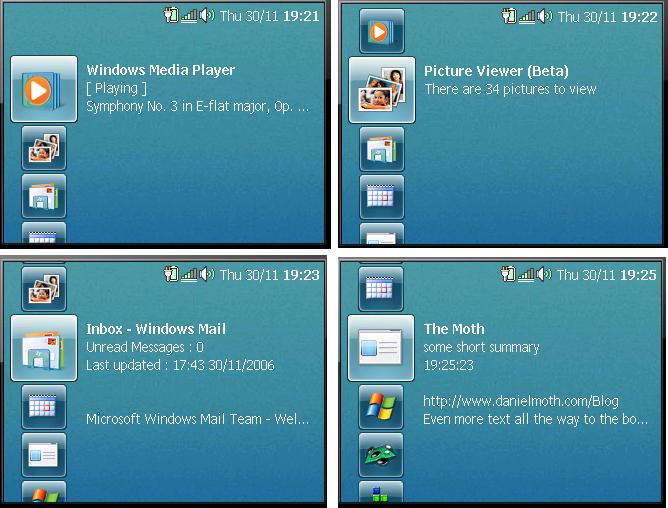
Simple Content Format (SCF)
Simple Content Format (SCF) is a simple XML format. It is used to describe pages and the elements on a page (except of course the very first glance data page which we established is plain text) including how everything maps to the buttons on the device. For an overview of SCF, click here.
When we look at the API later, we'll see that we send XML fragments to the device and each XML fragment represents a page.
Pages
A page is what is displayed on the SideShow device. For Windows Forms developers, think of this as the equivalent to a Form, except there is no designer and the way we describe what the page contains is via the SCF (which as I said is just XML, in this case an XML element that can contain other XML elements). All pages have a unique content id. Page types can be: content, menu, dialog.
For more, see SDK for body, content, menu and
Glance data
Your gadget may send to the SideShow device a complex UI and various navigation structures between pages of your UI. Regardless of whether it does that, it must first send what we call glance data. This is just plain text, and it is the text that appears next to your gadget icon when the user browses the gadgets on the device. Examples of glance data for the Windows Media Player, Picture Viewer, Windows Mail and our gadget, you can see in the following screenshot:

Simple Content Format (SCF)
Simple Content Format (SCF) is a simple XML format. It is used to describe pages and the elements on a page (except of course the very first glance data page which we established is plain text) including how everything maps to the buttons on the device. For an overview of SCF, click here.
When we look at the API later, we'll see that we send XML fragments to the device and each XML fragment represents a page.
Pages
A page is what is displayed on the SideShow device. For Windows Forms developers, think of this as the equivalent to a Form, except there is no designer and the way we describe what the page contains is via the SCF (which as I said is just XML, in this case an XML element that can contain other XML elements). All pages have a unique content id. Page types can be: content, menu, dialog.
For more, see SDK for body, content, menu and