Tuesday, April 22, 2008


For the actual real content of this post I'll defer to other links, but at least you'll have all those links collected in one place: here ;-)

In a nutshell, Silverlight 2 fully supports networking and calling services. It would be crazy if it didn't because by choosing the SL model you are choosing to run your application entirely on the client side (i.e. with no postbacks) so where will the real data come from (given that you are sandboxed in the browser and hence cannot access local data sources)? You have to connect somewhere to get it.

The High Level Statement
Broadly speaking there are 4 options (which you can combine of course) to satisfy the requirement:
1. Call self-describing services such as asmx, WCF, Java services or anything else conforming to SOAP. This is what is mostly used in the enterprise space and you can imagine behind the service a database so the service is a facade into that.
2. Call URL-based services (aka POX or REST) where you must construct the URL yourself by piecing information you read from the service's documentation and then parsing the results that come back which is typically a lamp of XML or JSON. Think e.g. services from amazon, ebay, flickr, youtube, digg etc
3. Consume RSS or ATOM feeds. Hopefully I don't have to give examples of syndication here ;)
4. Raw sockets where communication takes place over the TCP channel.

Links Covering the 4 Sub-Topics Above
- Quickstart on Building a WCF Web Service and Accessing It by Using a Proxy
- Quickstart on Sending and Receiving Plain XML Messages
- Quickstart on Accessing Syndication Feeds with Silverlight
- MSDN Documentation on Working with Sockets
- Karen's post on Silverlight's HTTP Networking Stack
- Wilco's post on HttpWebRequest in Silverlight
- Mahjayar's post on Rundown of webservices-related Functionality in Beta 1
- Mike's post on Silverlight 2 and Sockets
- Tim's post on Calling Web Services in Silverlight 2
- MSDN Documentation on Accessing Web Services in Silverlight (6 rich sub sections)

"I only have 1 hour and 5 minutes to look into this stuff, where should I go?"
You need to watch the session from MIX titled "Working with Data and Web Services in Microsoft Silverlight 2" delivered by Eugene. The direct link to the WMV file is here (save as).

Labels:


Thursday, April 17, 2008


As someone pointed out to me, I jumped straight into this "Silverlight thing" without doing a "Hello World post". Part of the reason for that is that this is covered in many online places already, but anyway, here goes my take...

Holding Your Hand for Clicking in the Right Places
After you install the bits we released at MIX (the only must is the SL tools for VS2008), go "File->New Project" and select the Silvelight tab (screenshot). You have two options: creating an Application or a Library (a dll you can reference form other SL apps). Select an Application, type your project name (e.g. HelloWorld) and (tip: I also like checking the "Create directory for solution" checkbox) click OK and you'll be confronted with a new dialog (screenshot). Of the 3 options only the 2 top ones are enabled for this scenario and I'll say off the bat that the 2nd option is fairly useless, so let's stick with the first option which is more interesting and powerful. What this option suggests is that it will create 2 projects for you: the Silverlight application project (the results of which run client side in the browser) but also a vanilla web project (that will run server side) to host your Silverlight app. Unlike most people I prefer "Web Application Project" to "Web Site" so change the "Project Type" combobox and click OK. Your solution now has two projects: HelloWorld and HelloWorld_Web (screenshot). Build it now (Ctrl+Shift+B) and notice the addition of a ClientBin folder in your HelloWorld_Web tree.

The Web Project
Delete the Default.aspx, file it is useless. We are left with two files (HelloWorldTestPage.aspx and HelloWorldTestPage.html) of which we will use only one at any given time (switch between them by right clicking and "Set As Start Page"). Both serve the same purpose which is to host the Silverlight plugin in which our SL application will be loaded in (think of them as test harnesses at this stage). Do a "View Code" on each from the right click menu (or click on the two links above) and take your time to look inside. I do not intend to go through the markup (please follow all links in this paragraph for more). Both files accomplish the same thing. One using the object tag with application/x-silverlight and the other using the asp:Silverlight tag, they point the Source of those to ClientBin/HelloWorld.xap. That is how the plugin knows where to look for the Silverlight application. So, you can correctly infer from this that your Silverlight project compiles to a XAP file and the build process then copies that to the web project's ClientBin folder. For now, please hold the question "What is this XAP thing?".

Before we move on to examine the Silverlight project, right click on the solution node and select "Add->New Project" and again choose "Silverlight Application" and click OK (screenshot). Notice how now the 3rd option is enabled? This is how you could add a Silverlight project to existing solution (instead of starting from scratch like we did) - Cancel the dialog. Another way to add a Silverlight project to an existing Web Project is by right clicking on the HelloWorld_Web project treeview node and select "Add Silverlight Link" and using that dialog. Now that we are comfortable with the web site aspect of things, let's look at the Silverlight project.

The Silverlight Project
Expand the References node in the Silverlight project. Most of the names of those assemblies will be familiar to you but bear in mind that these are the Silverlight variants/versions that will generally be a subset of what you are familiar with in the full .NET Framework.

Right click on the App.xaml node and select "View Code" which will bring up App.xaml.cs. Two of the self-explanatory event handlers in there are for you to use as you see fit (Exit and UnhandledException) and the most important one has been pre-populated for you: Startup - this is the entry point to the Silverlight app. You could handle here parameters passed from the markup (e.InitParams). By default it sets the Application.RootVisual to point to the other class in this project: Page (Page.xaml + Page.cs).

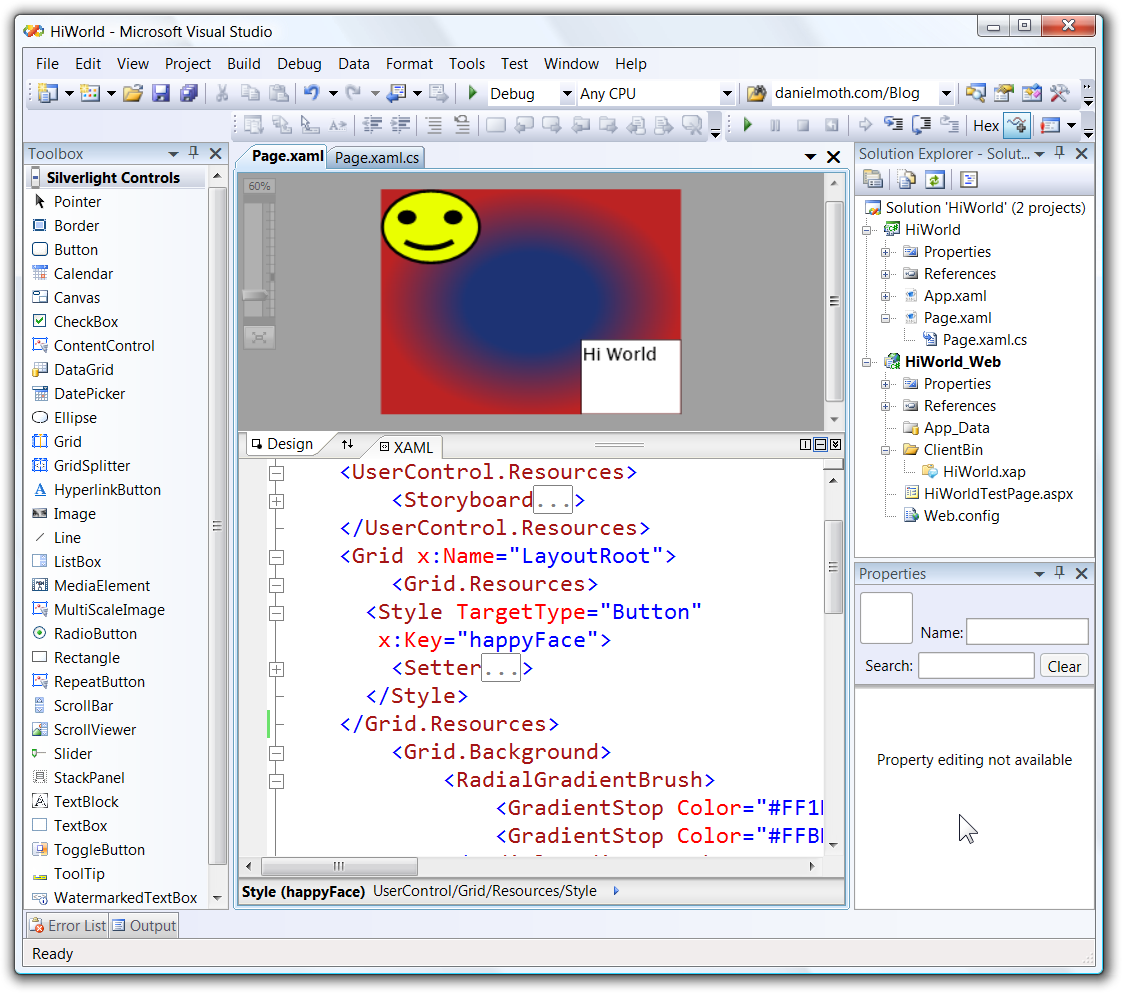
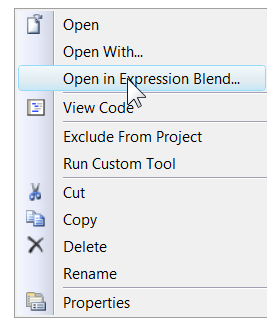
Right click on the Page.xaml node and select Open or just double click on it (screenshot). If you have done any WPF development this will be familiar in the sense that it is all about the eXtensible Application Markup Language (XAML).
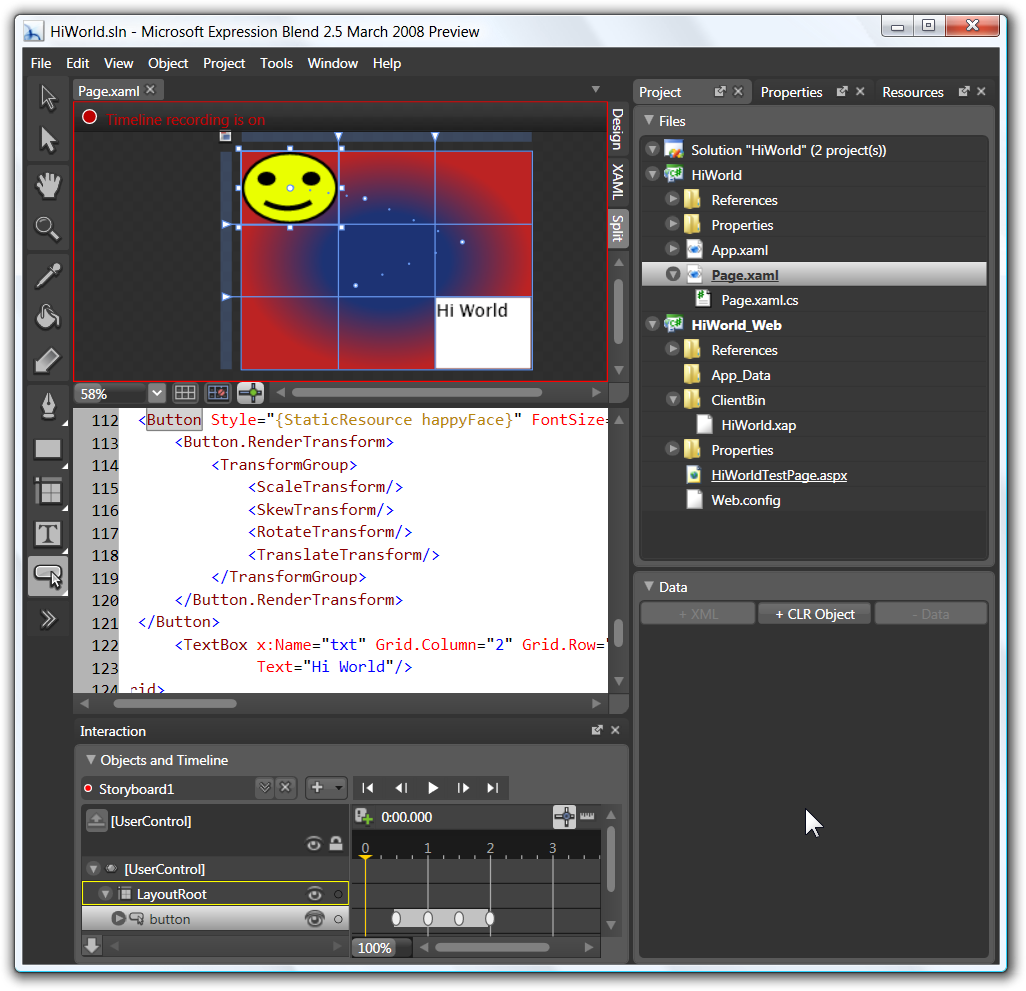
Both WPF and Silverlight use the same declarative, tool-friendly XAML-based UI development. The rough idea is that you drag and drop controls on the design surface at the top, set the properties of the controls via the properties window and potentially make some tweaks to the XAML that gets generated in the pane at the bottom. You can then hand this to a designer that will use another tool (currently Expression Blend 2.5) to really jazz it up, add their bling and then hand it back to you whilst the code behind in the Page.xaml.cs that you wrote (that contains the real business logic) remains intact. The reality at this stage of the Beta 1 is that the designer is read-only and the properties window doesn't work and Blend 2.5 also has some more work to be done to it. What this means is that currently in Beta 1, as a developer, you have to manually type all of the XAML for the GUI layout of your Silverlight application.

Within the existing Grid tag, type:
<TextBlock Text="Hello Silverlight World"/>

Build the solution. Using Windows Explorer navigate to the ClientBin (or just use Open Folder in Windows Explorer) and find the HelloWorld.xap file. Not to repeat myself here, please visit this post, read the first paragraph and then jump to point 4 and 5 and then come back here, we'll be waiting.

Run (F5)
Run the project (obviously the start up project for the solution is the Web project) and notice your browser coming up showing what you would expect. What has happened here is that the html or aspx page instantiated the SL plug-in, which then instantiated the Silverlight CLR, created an AppDomain and then downloaded the XAP file, opened it up and found the entry point at which stage it passes control over to your code.

When you right click anywhere on the page, you see the Silverlight menu option which just shows the "About" dialog with versioning info. You can tweak the size of the Silverlight plug-in in the host page (html or aspx) so it does not occupy the entire page. This is a way of creating an "island of richness" on an existing web page. I leave that as an exercise for home ;-).

For Further Info
- Truly Excellent Section on MSDN(read all of it following all the links)

Labels:


Wednesday, April 16, 2008


From a Silverlight 2 app we can prompt the user with a safe OpenFileDialog (OFD) so they can choose a file from their file system that we can then use in our application. It is interesting to contrast it with the existing OFD types that we have in the full framework. We have one for Windows Forms (in System.Windows.Forms namespace in same named assembly) and one for WPF (in Microsoft.Win32 namespace in PresentationFramework.dll assembly):

In the diagram above, I have filtered out many methods and properties so if you are interested in those please visit the hyperlinks I embedded above. Also, on a totally separate note, you may be interested in the new features that the WinForms dialog was enhanced with in Fx 2.0 SP1.

The Silverlight variant does not have any of the rich features (e.g. setting the title, readonly configuration, advanced extension usage, checking for file/path existence, setting initial directory, validation, showing help etc). It also does not have any parent classes (other than Object), so all required methods are defined on the OpenFileDialog class itself (which resides in the System.Windows.Controls namespace in the System.Windows.dll assembly). Below is the complete list of its members PLUS a new type (FileDialogFileInfo) that is introduced specifically for Silverlight:

The Filter and FilterIndex properties work just like the desktop counterparts (as do the obvious ctor and Dispose method). EnableMultipleSelection is also obvious, but it is worth noting the departure from the name used in the other two variants: Multiselect. Also obvious is the ShowDialog method but without following the link can you tell what the return type is? Up to this point you couldn't really tell if the SL dev team borrowed the design from the WPF team or from the WinForms team. Note that the WPF variant of ShowDialog returns a nullable Boolean (an interesting choice). The WinForms variant of ShowDialog returns the same type that the Silverlight variant returns: a DialogResult enumeration!

OK, enough of the obvious, let's move on to the not so obvious and see where the new type FileDialogInfo comes into play. The answer comes when we examine the return type of the SelectedFile property and find that it returns a FileDialogFileInfo object (and correspondingly the SelectedFiles returns a collection of FileDialogFileInfo objects). So, for security reasons, we are not given a path to the file that the user selected, and instead we are given an object from which we can discover the Name of the file and can open it as a stream (OpenRead or OpenText). Sample code:
var ofd = new OpenFileDialog();
ofd.EnableMultipleSelection = false;
ofd.Filter = "Txt Files|*.txt|Silverlight Video Files|*.wmv";
ofd.FilterIndex = 2;
if (ofd.ShowDialog() != DialogResult.OK)
return;

FileDialogFileInfo fdi = ofd.SelectedFile;
lbl.Text = fdi.Name; // lbl is a TextBlock
if (ofd.FilterIndex == 1) //not robust but hey..
{
StreamReader sr = fdi.OpenText();
txt.Text = sr.ReadToEnd(); // txt is a TextBox
sr.Close();
}
else if (ofd.FilterIndex == 2) //not robust but hey..
{
wmv.SetSource(fdi.OpenRead()); // wmv is a MediaElement
}

See it running in action here (plus a bit more). Get the source via the usual decompiling method.

Labels:


Tuesday, April 15, 2008


Silverlight applications can store data (in files) onto the user's machine via the good old Isolated Storage mechanism. The API and restrictions of Isolated Storage are slightly tweaked in the Silverlight framework. Let's explore that.

Background Research
On both the full (aka desktop) framework and the Silverlight framework the implementation resides in mscorlib.dll and specifically the System.IO.IsolatedStorage namespace. On the desktop framework the classes in there are shown on the following class diagram (with the 2 most interesting classes collapsed for exploration later):

Note that in the Silverlight implementation there is no base abstract class IsolatedStorage as on the desktop or INormalizeForIsolatedStorage interface or IsolatedStorageScope enumeration. If you explore the desktop capabilities following the links above and relate them to Silverlight's restrictions you'll see why that is – I will not explore that in this post. Also note that the IsolatedStorageException class is available in Silverlight.

On the flip side, when looking in the namespace in the Silvelright version of mscorlib we additionally find the IsolatedStorageSecurityOptions enumeration that is only used by the other new type in the namespace: the IsolatedStorageSecurityState class which itself is not used or exposed publically by anything AFAICT! So basically, just ignore these two types for now as I can only presume that someone forgot to mark them as internal.

Using It
So back to looking at useful classes, and we are left with the 2 that exist in both variants (that are collapsed on the diagram further above): IsolatedStorageFile and IsolatedStorageFileStream. If you follow the links to the Silverlight documentation for those you'll find some differences compared to the desktop version and maybe the eagle-eyed among you can spot them in the following list of methods:

The IsolatedStorageFileStream class is the same as the desktop version but it omits 5 overloads of the constructor (the ones that have a bufferSize option and the ones that do not have the IsolatedStorageFile argument). The IsolatedStorageFile class has 12 static methods removed (the GetXXX methods except one) and also adds 10 members of its own (I have marked these with an asterisk * in the screenshot above).

OK, enough of API spelunking; how do you use this thing? That's the easiest part as you just follow the pattern of:

1. Obtaining an IsolatedStorageFile (e.g. via the static method GetUserStoreForApplication)
2. Creating an IsolatedStorageFileStream object passing it in the reference from step one
3. Creating a normal System.IO. StreamWriter or StreamReader passing it in the reference from step two
4. Using the Stream to read or write as per usual.

I have a basic SL app that uses iso storage here so have a play by entering some text/values and close/reopen the browser to see them remembered. To look at the code, follow the steps here. To browse on your local machine to the storage, paste this in your windows explorer (and drill in to find a moth file and a _LocalSettings):
%userprofile%\AppData\LocalLow\Microsoft\Silverlight\is

Wait, There Is More
What other things must you know? There is a default disc quota that Silverlight apps have and your app can request an increase (IncreaseQuotaTo) from the user, but only from the UI thread. There is a good explanation of that and more here. You may also be thinking what type of data you should be storing in iso storage (e.g. things that the browser caches anyway are not good candidates) and Chris has some opinions here (even if some of his facts are outdated).

In addition to all of the above, Silverlight adds a unique class (no equivalent on the desktop yet) that makes it easy to store application settings in isolated store: System.IO.IsolatedStorage.ApplicationSettings in System.Windows.dll. There are examples of its usage here and here (and I also use it in my basic sample above). If you are the decompiling type, look through reflector at the class's Save method to see how it uses the lower level APIs discussed further above combined with a MemoryStream ;-)

Labels:


Monday, April 14, 2008


One of the big things about Silverlight 2 is that it is "just .NET", but in the (cross)browser and cross-platform world. "Just .NET" means that we can use the same programming language (e.g. C# 3.0 or VB9), the same tool (i.e. Visual Studio 2008) and we can expect the same services from a runtime (i.e. the CLR). It also means that the libraries available should have some parity (e.g. compatible subset) with the .NET Framework 3.5 libraries that we are already familiar with. So I thought I'd explore the managed assemblies in Silverlight 2 Beta 1 from a high level.

First we browse to %ProgramFiles%\Microsoft Silverlight\2.0.30226.2\ and there is the full list of what is part of the runtime package that is installed on users' machines when they install the plugin (note the size of each assembly that gives an indication of the number of members in there):


In addition to those assemblies above, currently there are some additional ones that you can choose to reference and deploy with your Silverlight application (i.e. in the XAP). You currently get these when you download the Silverlight SDK:

Notable in the list above are the 3 highlighted assemblies that include controls. I would expect that some of the assemblies currently in the SDK folder would become part of the main list further up. Also note the interesting System.Xml.Linq.dll and all the support for dynamic languages.

In future posts, I will write a paragraph for each one of the assemblies comparing them to their desktop counterparts as applicable.

Labels:


Sunday, March 09, 2008


When you build a Silverlight 2 application, you compile your source files (inc. XAML and embedded resources) into assemblies (dlls). Those assemblies (plus any 3rd party ones plus MS assemblies that are not part of Silverlight) are then collected together along with a manifest into a packaged archive – or in other words, a ZIP file. Except, the extension is changed to be a .XAP (pronounced "ZAP"). The benefits of packaging everything into a XAP should be obvious but in case they are not, Pete has discussed that on his blog (inc. screenshots). Note that if your web server is on IIS (prior to version 7) you need to register that MIME type. As an aside, my web server happens to be Apache (shocking I know!) and I had to configure nothing – it just worked.

So, if I had given you a Winforms EXE file you wouldn't ask me for the source code, you would probably just pass it through your favourite decompiler and you've got it all. Same with Silverlight apps: if I point you to my web page that is running a Silverlight app (e.g. the one from this post) all you have to do is:

1. View HTML source, e.g. for this: http://www.danielmoth.com/SL/HtmlBridge/index.html

2. Locate the tag that points to a XAP file and copy the full path, e.g. ClientBin/DemoIntegration.xap

3. Use that path to "Save As" the xap file locally.

4. Rename the XAP file to ZIP and explode it to get the DLLs inside.

5. Party away by tossing the DLL(s) to the decompiler, e.g. Reflector.

Obviously authors of serious SL apps may not condone that behaviour, but feel free to do it with all of mine, for example the DeepZoom/MultiScaleImage that I have now updated to also use mouse wheel.

Labels:


Saturday, March 08, 2008


Given that Silverlight applications sit in the browser via a plug in, it would be silly if you couldn't interact from managed SL code with other browser elements, such as html elements and script so that you could, for example, reuse existing assets. I have heard the browser-agnostic integration featured described as HTML Bridge and it is implemented in the System.Windows.Browser.dll assembly in a same named namespace. You can see the types from that namespace on the following image (click on it for the expanded version):


The important inheritance hierarchy to be aware of is that HtmlDocument and HtmlElement inherit from HtmlObject (that allows handling script events via AttachEvent) which inherits from ScriptObject (that allows you to execute scripts via its Invoke and InvokeSelf methods). HtmlPage is a great entry point because you can navigate across its Window property to an HtmlWindow (that allows e.g. to Navigate URLs) and across its Document property to an HtmlDocument (that offers e.g. access to Cookies and QueryString). Also note the 2 Attribute classes: ScriptableType and ScriptableMember. Those are used for exposing Silverlight managed classes to script in the browser combined with HtmlPage.RegisterScriptableObject and RegisterCreateableType methods. Open the expanded class diagram in a separate window and identify the aforementioned methods. Notice there how HtmlDocument allows you to create new elements and retrieve existing ones (CreateElement and GetElementById). Once you have references to those HtmlElements you can do things like SetAttribute, SetStyleAttribute and AppendChild to name a few. Script events are handled in your managed ScriptEventHandler method that accepts an HtmlEventArgs which you can find on the class diagram along with its relationships (e.g. MouseButtons). You should also checkout the HttpUtility class and its self-explanatory methods such as UrlEncode.

Phew! Take a moment to study the two class diagrams using the previous paragraph as a guide and also note that all links above are direct links to the API documentation (i.e. this blog post becomes my bookmark into MSDN ;)). You can also follow a quickstart (DOM access), two walkthroughs (calling managed from script and script from managed), and for those that want even more, follow this 2-hour lab (ZIP).

To see some of the browser integration in action, I have here the ugliest and most basic SL app that simply proves some of the concepts.

Labels:


Friday, March 07, 2008


It is a well known fact that I love the Class Designer that was introduced in VS2005 and I had fed back a lot during its early stages (good and missing). This is the tool I use to explore any new library/framework that comes out before dropping to the code editor to really play with the API (btw, that answers this FAQ I get when people talk to me about this job).

So I did the same for Silverlight 2 Beta1 and noticed that the option to add a "Class Diagram" was not there! These are all the item templates a Silverlight project will offer:

Some overzealous filtering took place there IMO. I see no reason to omit it since the CD is reflection-based and can hence handle any .NET library. Anywho, all is not lost as you can right click on any code file in Solution Explorer and select "View Class Diagram" from there. Panic (and trivia) over.

Labels:


Thursday, March 06, 2008


One of the demos that captures people's attention with some Silverlight 2 demos is the Seadragon-based technology that in Silverlight is called "DeepZoom". To see a good example of that in action look at the Hard Rock Memorabilia site or visit the Vertigo site (the guys that built the HR experience). The control behind all that is the MultiScaleImage control. You need to point the Source property of that to the output you get when you use the DeepZoomComposer tool. The tool basically takes an image and chops it up to more download-friendly bits that it distributes to folders.

My colleague MikeT had a play with it all and has a quickstart on his blog. One of the downsides of that approach is that it uses the keyboard for panning around and zooming. I thought I'd take that and try to offer navigation (left/up/right/down) via dragging the mouse and also zooming in by clicking the mouse. To zoom out, I had to keep with using the keyboard (Spacebar was my choice). Assuming that you have the Silverlight 2 runtime installed, the results are here. The source is work in progress but should anyone care about it too much I can share.

It was actually more work than I anticipated. Detecting mouse movement is easy, but making it scroll half-sensibly dependent on how zoomed in or out it is, and also to vary the drag speed dependent on how aggressively the mouse is moved was not as straightforward (to me). My example also doesn't really make as a good sample because I used an image that isn't sufficiently large or deep. To truly experience the beauty of the control, please visit the links at the top.

If you visit the links at the top you will also find that scrolling is much more natural because in addition to mouse clicking for zooming in, the mouse wheel is also used. Mouse wheel events are not directly supported in managed code and require javascript assistance. There is a sample that shows you how to do that on mharsh's blog (but it doesn't include the panning and zooming on click).

So if you aggregate all the sources of information I list above, you can come up with the complete sample ;-).

Labels:


Copyright © Daniel Moth