Wed, January 17, 2007, 05:28 PM under
Windows |
Vista
In an
older post I highlighted one of the changes in the TreeView control in Vista’s explorer:
"...the treeview has no horizontal scrollbar at the bottom and scrolling happens for you automatically as you select nodes that are not fully visible and as you mouse over around..."
I then offered some code that makes the
System.Windows.Forms.TreeView control behave the same way.
If you take a further look at the explorer TreeView you’ll notice that in addition to the autoscroll functionality previously described, there are also some aesthetic changes:
1. The selected TreeNode has a highlight rectangle but it is not the heavy blue that it was on legacy versions of Windows.
2. When hovering over non-selected TreeNodes, the node under the mouse also gets a very light blue rectangle.
3. Rather than ‘plus’ and ‘minus’ signs before each node (used for expanding/collapsing) it has some small triangles (filled with black, empty or highlighted with blue).
E.g. in the following picture the “inetpub” folder is highlighted while my mouse is over the “logs” folder:
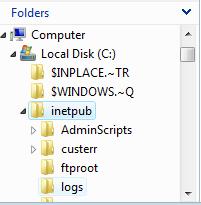
So I was looking at how I can make my managed TreeView have the same feel and look. The answer is in the Vista
MSDN forums: you have to call
SetWindowTheme API from the uxtheme.dll as follows:
SetWindowTheme(treeView1.Handle, "explorer", null);As an aside, you can use this exact code with the ListView control as well :-)Note that for the managed TreeView you also have to set to
true the
HotTracking property (and for identical look, to
false the
ShowLines property).
So, next thing I noticed is that the explorer TreeView also auto hides the +/- replacements i.e. it auto hides the little triangles. It was easier finding out how to achieve that since I had already seen a list of new Vista TreeView constants which is where the inspiration for the blog entry on
TVS_EX_AUTOHSCROLL came from. The answer is to add to the TreeView's extended style the TVS_EX_FADEINOUTEXPANDOS:
NativeMethods.SendMessage(treeView1.Handle,
     NativeMethods.TVM_SETEXTENDEDSTYLE, 0,
     NativeMethods.TVS_EX_FADEINOUTEXPANDOS);
...of course to add the style rather than just set it, first you have to retrieve the existing style and then bitwise OR it with the TVS_EX_FADEINOUTEXPANDOS style.I have updated the two code files, which I posted last time, to incorporate these additions and you can get them from the same place:
NativeMethods.cs and
TreeViewVista.cs (the comments in the code are self-explanatory I hope).
Finally, note that you can pick and choose which feature you want. For example Windows Mail on Vista clearly sets the “explorer” theme (and HotTracking=true and ShowLines=false), but does not set the extended styles at all (so no auto-fading and no auto-scrolling)...